

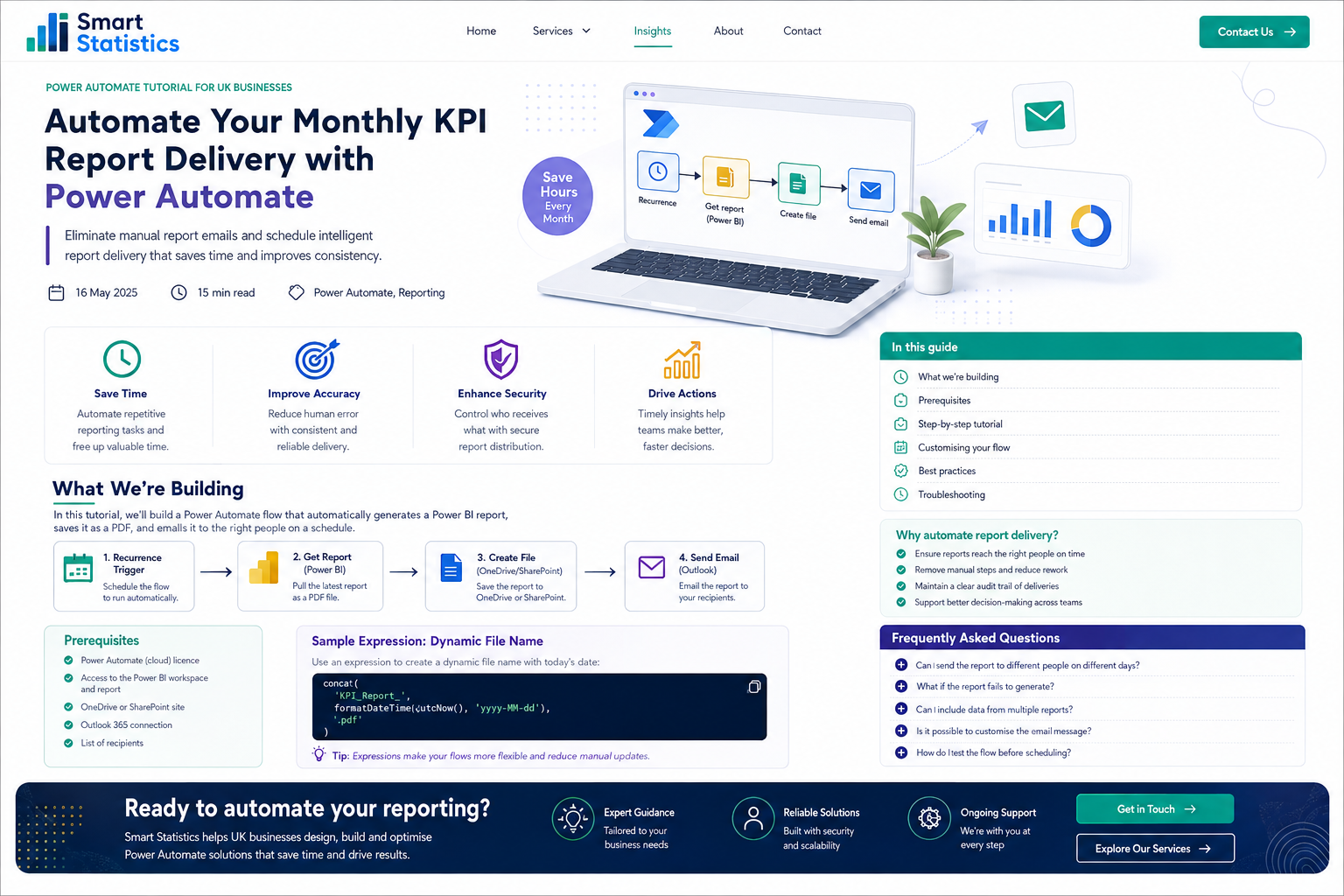
Automate Your Monthly KPI Report Delivery with Power Automate
If somebody still downloads a management report, renames the file, saves a copy and emails it to the same recipients every month, the process is a strong candidate for automation.
This tutorial shows how to build a scheduled Power Automate flow that exports a Power BI KPI report, optionally archives it in SharePoint or OneDrive, and sends the finished report to an approved distribution list.
Remove Administration without Losing Control
The value is not simply sending an email automatically. A well-designed flow can make recurring reporting more consistent, auditable and easier to support.
Reduce Repetitive Work
Remove predictable monthly tasks that add little judgement or business value.
- No repeated manual export
- No repeated file renaming
- No repeated attachment process
Improve Delivery Consistency
Standardise the timing, report format, file naming and distribution process.
- Consistent subject line
- Consistent attachment format
- Consistent monthly timing
Create a Reporting Archive
Save each generated file before distribution when the business needs a historical record.
- Predictable filenames
- Structured storage location
- Clear period history
Make Ownership Explicit
Treat the automation as a business process with a named owner, recipients and support approach.
- Named process owner
- Approved distribution list
- Known failure route
Confirm the Prerequisites
Report-export automation depends on the Power BI environment, permissions and connections used by your organisation. Confirm these before building the flow.
Power BI requirements
Confirm that the report can be exported using the Power Automate Power BI export action and that the flow owner can access the required workspace and report.
- Required Power BI workspace and report access
- A workspace backed by supported reserved capacity
- A report layout suitable for exported output
- Validated default filters and slicer states
Power Automate requirements
The flow owner needs the relevant connections and access to every service used by the automation.
- Power Automate access
- Power BI connector connection
- Outlook connection for email delivery
- SharePoint or OneDrive access if archiving
Build the Monthly Report Automation
The steps below create a simple, supportable flow that can be extended later with recipient rules, multiple reports or additional exception handling.
Prepare the Power BI report
Open the report and confirm that the saved default state is suitable for automated export. Automated output should not depend on somebody manually changing a slicer before the flow runs.
- Check the required report pages
- Confirm default slicer selections
- Review titles, date labels and page layout
- Confirm the flow owner can access the report
Create a scheduled cloud flow
In Power Automate, create a scheduled cloud flow and configure the recurrence for the required monthly reporting point.
- Give the flow a clear business name
- Choose the starting date and time
- Set the recurrence frequency
- Select the appropriate time zone
Add Export to File for Power BI Reports
Add the Power BI action named Export to File for Power BI Reports . Select the workspace, report and required export format.
- Select the correct workspace
- Select the correct Power BI report
- Choose PDF or another supported output format
- Review any report-page or bookmark settings
Create a dynamic filename
Use a consistent filename so users and archive folders can identify the report and reporting period without opening the attachment.
concat(
    'Monthly_KPI_Report_',
    formatDateTime(utcNow(), 'yyyy-MM-dd'),
    '.pdf'
)
Use the same filename expression for the archive copy and email attachment so the generated file remains consistent throughout the flow.
Optionally archive the exported report
If the business needs a record of each distributed report, add a file-creation action in the approved SharePoint library or OneDrive location.
- Choose one controlled reporting folder
- Use the dynamic filename
- Use the exported Power BI file content
- Apply the organisation's retention rules
Add the email delivery step
Add an Outlook email action and configure the approved recipient list, subject line, message and exported file attachment.
- Use an approved mailbox or flow owner
- Prefer a managed distribution group where suitable
- Use a clear reporting-period subject line
- Attach the exported Power BI file content
Test the entire process manually
Save the flow and run a controlled test before relying on the monthly schedule.
- Confirm the flow starts successfully
- Open and review the exported report
- Check the filename and archive location
- Confirm the correct recipients receive the email
- Check the attachment opens correctly
Monitor failures and assign ownership
Production automation needs an owner. Decide who checks failed runs, updates connections and reviews recipient changes.
- Review Power Automate run history
- Define what happens when export fails
- Document the flow owner and backup owner
- Review connections after staff or role changes
Build Automation That Is Supportable
The flow should still make sense six months later when a recipient changes, a connection expires or the report owner is unavailable.
Ownership
Record the business owner, technical owner and backup person responsible for the flow.
Access
Ensure the flow does not distribute information to people who should not receive the report.
Timing
Schedule delivery after source refreshes and model processing are expected to complete.
Monitoring
Review failed runs and use a clear support route so silent failures do not become normal.
Quantify the Repetitive Effort
A simple worked example can help decide whether the automation is worth implementing.
Illustrative calculation
Assume a team distributes six recurring reports each month and spends an average of 20 minutes exporting, renaming, saving and emailing each one.
Six reports × 20 minutes × 12 months = 1,440 minutes, or 24 hours of recurring administration per year.
This does not mean every organisation will save 24 hours. The figures are illustrative only. Measure the current process first, then compare the actual effort after implementation.
Power Automate Report Delivery FAQs
Can Power Automate export a Power BI report automatically?
Can I send the report as a PDF attachment?
Can the flow keep a monthly archive?
Can different reports go to different recipients?
What happens if the report export fails?
How can Smart Statistics help?
Ready to Remove Repetitive Reporting Tasks?
Smart Statistics helps UK businesses automate repetitive reporting, approval and data processes without losing sight of governance, ownership or business outcomes.
Whether you need Power Automate, Power BI, Excel, Power Apps or a connected Microsoft Power Platform solution, we can help you design a practical approach.