

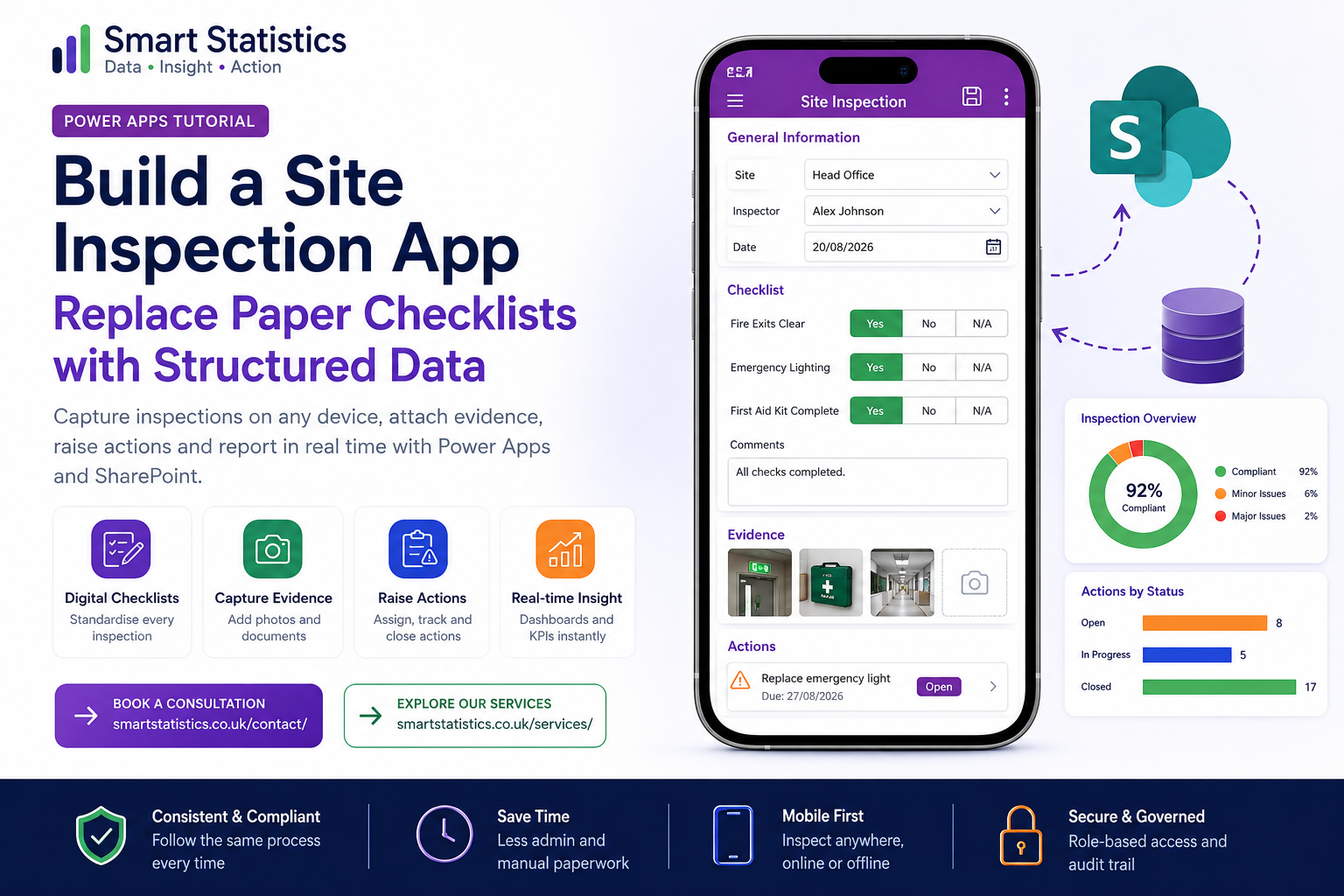
Build a Site Inspection App in Power Apps: Replace Paper Checklists with Structured Data
Paper inspection forms are easy to start with but difficult to manage at scale. Handwriting must be interpreted, photographs sit in separate folders, corrective actions are followed up by email and management reporting often requires another spreadsheet.
A Power Apps inspection application can bring those activities into one structured process: inspectors complete the checklist on a phone or tablet, capture evidence, record issues and save the inspection directly to a governed data source.
General Information
Inspection Checklist
Evidence
Corrective Action
Due: 27/08/2026
Illustrative dashboard metric showing completed compliant checks.
Each inspection becomes a searchable record rather than another document or email attachment.
Move from Completed Forms to Usable Business Data
The real value of digitising an inspection is not simply replacing paper with a screen. It is creating structured information that can support follow-up, reporting, accountability and continuous improvement.
Standardise the Checklist
Give every inspector the same questions, response options and mandatory fields.
- Consistent inspection structure
- Required questions
- Clear response options
Keep Evidence Together
Supporting photographs and documents can remain associated with the inspection record.
- Evidence with the inspection
- Less searching through folders
- Better audit context
Track Corrective Actions
Failed checks can trigger defined follow-up rather than disappearing into comments or email chains.
- Action owner
- Target completion date
- Status tracking
Report from the Data
Structured records can feed operational reporting without somebody manually retyping inspection results.
- Inspection trends
- Open-action reporting
- Site and category analysis
Start with a Simple Three-Part Pattern
For a straightforward departmental inspection process, Power Apps can provide the user experience while SharePoint stores the structured records and Power BI or Excel provides downstream analysis.
Power Apps
Mobile-friendly interface for completing inspections and reviewing records.
SharePoint Lists
Structured inspection and action records with Microsoft 365 permissions.
Reporting
Use Power BI or Excel to analyse compliance, trends, locations and outstanding actions.
Design the SharePoint Inspection List
Avoid starting in Power Apps before deciding what data the business actually needs. A good app normally starts with a clear data structure.
| Column | Suggested Type | Purpose |
|---|---|---|
| Title | Single line of text | Human-readable inspection reference. |
| Site | Choice or Lookup | Location being inspected. |
| InspectionDate | Date | Date the inspection took place. |
| Inspector | Person | User responsible for the inspection. |
| FireExitsClear | Choice | Example response: Yes, No or N/A. |
| EmergencyLighting | Choice | Structured checklist response. |
| FirstAidComplete | Choice | Structured checklist response. |
| Comments | Multiple lines of text | Inspector notes and observations. |
| OverallStatus | Choice | Example: Compliant, Attention Required, Critical. |
| Attachments | SharePoint attachments | Supporting photographs or documents. |
Build the Inspection App from Start to Finish
The formulas below use an edit form called frmInspection connected to a SharePoint list called Site Inspections.
Create the canvas app
Create a canvas application in Power Apps and connect it to the SharePoint list containing your inspection records.
- Create the app in the correct Power Platform environment.
- Add the SharePoint data connection.
- Select the site and the Site Inspections list.
- Use responsive containers where practical.
Add a browse screen
Give inspectors a simple landing screen showing recent inspections and a button for starting a new one.
New Inspection Button — OnSelectNewForm(frmInspection);
Navigate(
scrInspection,
ScreenTransition.Fade
)
NewForm() changes the form into new-record
mode before the user reaches the inspection screen.
Configure the inspection form
Add an Edit Form control named frmInspection and set its data source to the SharePoint list.
Form — DataSource'Site Inspections'Form — Item
galInspections.Selected
Add the required SharePoint fields to the form and arrange them into logical sections such as general information, checklist, comments and evidence.
Default the inspector and date
Where appropriate, reduce unnecessary data entry by defaulting information that Power Apps already knows.
For a date picker used for a new inspection, a common default is:
Today()
For a SharePoint Person field, retain the generated Combo Box structure unless you have a specific reason to customise it. Person fields require a record rather than plain text.
Add structured checklist responses
Avoid putting important inspection answers into one large comments field. Use structured response fields that can later be filtered and reported.
For example, a SharePoint Choice column might contain:
Yes
No
N/A
This allows the organisation to answer questions such as:
- Which sites have failed fire-exit checks?
- How many inspections contained a failed item?
- Which checklist categories fail most often?
Add evidence attachments
Add the SharePoint Attachments field to frmInspection. This allows inspectors to attach supporting files to the inspection record.
This approach can be useful for photographs of defects, supporting documentation or other inspection evidence.
Validate before submission
The app should make incomplete inspections difficult to submit.
If the required properties on the form are
configured correctly, the form's
Valid property provides a useful
validation check.
If(
    frmInspection.Valid,
    SubmitForm(frmInspection),
    Notify(
        "Please complete all required inspection fields.",
        NotificationType.Warning
    )
)
This uses the form's built-in validation before
calling SubmitForm().
Handle successful submissions
Rather than placing navigation immediately after
SubmitForm(), use the form's
OnSuccess property. That ensures
the success behaviour occurs after Power Apps has
successfully saved the record.
Notify(
    "Inspection saved successfully.",
    NotificationType.Success
);

Navigate(
    scrHome,
    ScreenTransition.Fade
)
frmInspection — OnFailure
Notify(
    "The inspection could not be saved. " &
    frmInspection.Error,
    NotificationType.Error
)
Add edit and cancel behaviour
Existing inspections can use the same form in edit mode.
Edit Button — OnSelectEditForm(frmInspection);
Navigate(
scrInspection,
ScreenTransition.Fade
)
Cancel Button — OnSelect
ResetForm(frmInspection);

Navigate(
    scrHome,
    ScreenTransition.Fade
)
ResetForm() discards unsaved changes
in the form before returning the user to the
previous screen.
Create corrective actions
For a more scalable solution, create a second SharePoint list called Inspection Actions.
Suggested fields include:
- Inspection ID
- Action description
- Action owner
- Target date
- Status
- Completion notes
Separating actions from inspections allows one inspection to have several corrective actions without adding repeated action columns to the inspection list.
Filter the inspection gallery carefully
As the list grows, pay attention to Power Apps delegation. Not every Power Fx operation can be delegated to every data source.
A straightforward example for filtering by site might look like:
Filter(
    'Site Inspections',
    Site.Value = cmbSiteFilter.Selected.Value
)
Test before publishing
Test the application as a business process, not simply as a collection of controls.
- Create a new inspection.
- Save an inspection containing attachments.
- Edit an existing inspection.
- Test required-field validation.
- Test with a standard user account.
- Confirm SharePoint permissions.
- Test the app on the intended phone or tablet.
- Confirm reports receive the expected data.
Add Workflow with Power Automate
Once the inspection data is structured, Power Automate can handle follow-up tasks that previously depended on somebody remembering to send an email.
Failure Notifications
Notify the relevant manager when an inspection contains a critical or failed check.
Action Reminders
Remind action owners when corrective work approaches or passes its target date.
Management Summaries
Distribute scheduled summaries of open actions, recent failures or overdue inspections.
Escalation
Route unresolved high-priority actions to another level of management after a defined period.
Build an App the Business Can Actually Support
A successful inspection app needs more than attractive screens. Ownership, permissions, change control and data quality should be designed alongside the application.
Named Ownership
Define who owns the application, the inspection process and the underlying SharePoint data.
Permissions
Review app sharing and data-source permissions so users receive only the access they require.
Change Control
Document changes to checklist questions, formulas, SharePoint columns and workflow logic.
Monitoring
Review usage, failed processes, data quality and outstanding actions after deployment.
Measure More than Paper Saved
The figures below are illustrative examples only. Actual outcomes depend on the inspection volume, existing process and solution design.
Structured Process
One defined digital workflow for completing inspections.
Illustrative Rekeying
Design objective: remove manual transcription from paper into a reporting spreadsheet.
Illustrative Traceability
Design objective: each submitted inspection has a structured digital record.
Reporting Options
Structured data can support Power BI, Excel and operational views.
Power Apps Inspection FAQs
Can Power Apps replace paper inspection forms?
Can inspectors attach photographs?
Can the app work on a phone?
Should I use SharePoint or Dataverse?
Can inspection data be reported in Power BI?
Can Power Automate send reminders?
What are delegation warnings?
How can Smart Statistics help?
Still Running Important Inspections on Paper, Email or Spreadsheets?
Smart Statistics helps UK businesses turn manual operational processes into practical, governed Microsoft Power Platform solutions.
From Power Apps data capture and Power Automate workflows to Power BI reporting and process improvement, we can help you design a solution that is useful for employees and manageable for the business.