

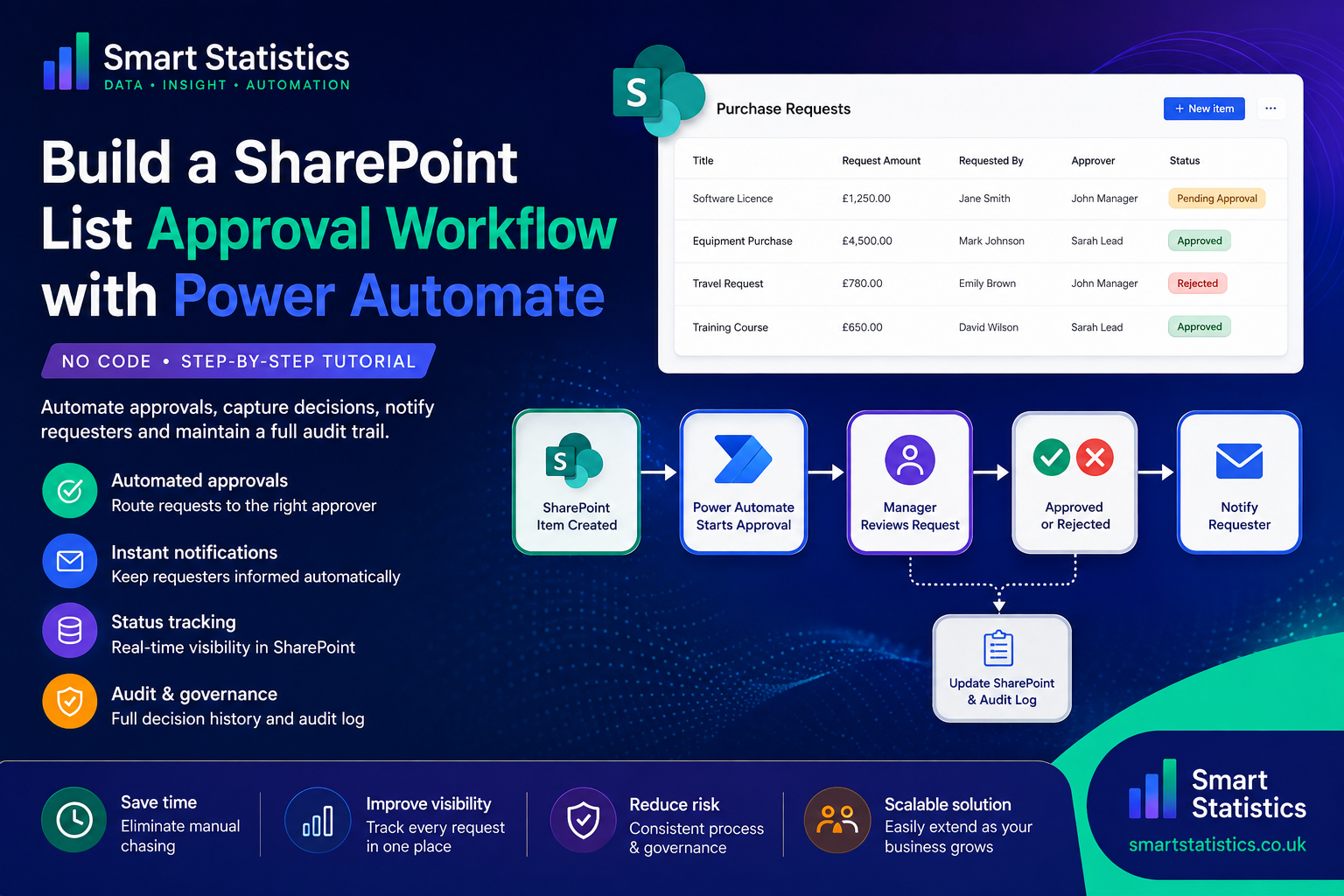
Build a SharePoint Approval Workflow with Power Automate
Replace email chasing and disconnected approval records with a structured workflow that captures the request, routes it to the right approver, records the decision and automatically keeps everybody informed.
Remove unnecessary email chasing and manual hand-offs.
Apply the same approval rules every time.
Keep requesters informed without additional administration.
Report on pending, approved and rejected requests.
Approvals become difficult when the process lives inside email.
A purchase request may begin as an email, spreadsheet row or Teams message. Somebody forwards it to a manager. The manager replies. Another employee updates a spreadsheet. The requester asks for an update two days later.
The approval itself may be simple, but the surrounding administration creates unnecessary work and makes it harder to answer basic questions such as who approved the request, when the decision was made and what comments were provided.
A SharePoint List and Power Automate can turn this into a repeatable workflow without requiring a bespoke application.
- One structured request record rather than multiple disconnected messages.
- Automatic routing to the correct approver.
- A persistent decision history that can later feed Power BI.
Illustrative request
Design the SharePoint List before building the flow.
A reliable workflow begins with a clear data structure. For a purchase-request example, the following columns give Power Automate enough information to manage the request and retain the outcome.
| Column | Type | Purpose |
|---|---|---|
| Title | Single line of text | Short description of the request. |
| RequestAmount | Currency | Value being requested. |
| RequestedBy | Person | Person submitting the request. |
| Approver | Person | Person responsible for the decision. |
| BusinessJustification | Multiple lines of text | Reason the request is required. |
| ApprovalStatus | Choice | Draft, Pending Approval, Approved or Rejected. |
| DecisionComments | Multiple lines of text | Comments returned from the approval. |
| DecisionDate | Date and time | When the final decision was recorded. |
| FlowRunId | Single line of text | Optional technical reference for troubleshooting. |
A dedicated ApprovalStatus column makes it easier to create filtered SharePoint views, Power Apps screens and Power BI reporting later.
The approval process is simpler when each step has one job.
Build the Power Automate approval workflow
This example uses one approver and an Approve or Reject decision. The same architecture can later be extended to multiple or sequential approvers.
Create an Automated cloud flow
In Power Automate, create a new Automated cloud flow.
Give it a business-focused name such as:
Choose the SharePoint trigger When an item is created, then select the site and request list created earlier.
Updating the item later in this tutorial will not create a loop because the flow is triggered only when the record is first created.
Set the request to Pending Approval
Add the SharePoint Update item action.
Pass the ID from the trigger and set ApprovalStatus to Pending Approval.
This immediately gives the requester and operational teams a visible status even before the manager responds.
Add Start and wait for an approval
Add the Approvals action Start and wait for an approval.
For a simple manager approval, select: Approve/Reject – First to respond.
| Approval field | Suggested value |
|---|---|
| Approval type | Approve/Reject – First to respond |
| Title | Approval required: [Request Title] |
| Assigned to | Approver Email |
| Details | Request amount, requester and business justification |
| Item link | Link to item |
| Item link description | Open purchase request |
Rename the approval action to Manager_Approval. A clear action name makes expressions easier to understand later.
Test whether the request was approved
Add a Condition beneath the approval. You can select the approval Outcome from dynamic content and compare it with Approve.
Alternatively, the equivalent expression is:
This returns true when the approval outcome is Approve and sends the workflow down the Yes branch.
When testing directly against the standard approval response, use the exact value returned by the approval action.
Update SharePoint with the final decision
In the Yes branch, add another SharePoint Update item action and set:
| Column | Approved branch |
|---|---|
| ApprovalStatus | Approved |
| DecisionComments | Approval response comments |
| DecisionDate | Current date and time |
Use this expression if you want a formatted decision timestamp:
Repeat the same pattern in the No branch but set ApprovalStatus to Rejected.
Notify the requester automatically
Add Microsoft 365 Outlook Send an email (V2) in both branches.
The approved message might contain the request title, decision, approver comments and a direct link back to the SharePoint item.
A useful subject line can be generated dynamically:
This produces a consistent subject using the SharePoint request ID and approval outcome.
Create a dedicated audit record
For a process where traceability matters, create a second SharePoint List called Approval Audit Log.
| Audit column | Value |
|---|---|
| RequestID | Original SharePoint item ID |
| RequestTitle | Original request title |
| Decision | Approval Outcome |
| DecisionComments | Approval response comments |
| DecisionDate | Current date and time |
| FlowRunId | Optional workflow run reference |
You can capture the current flow run name with:
This technical reference can be useful when troubleshooting a specific approval record.
It does not automatically make the solution a regulatory compliance system. Apply your organisation's own retention, access and information-governance requirements.
One approver is only the beginning.
Power Automate supports several approval patterns, so the workflow can evolve as the business process becomes more sophisticated.
First to respond
Useful when any one assigned approver can make the final decision.
Everyone must approve
Use when all assigned approvers must agree before the request can proceed.
Sequential approval
Use when decisions must occur in a defined order such as line manager, finance and director.
Custom responses
Add outcomes such as Approve, Reject or Need More Information when a binary decision is not enough.
Approver from SharePoint
Store the approver in a Person column so different requests can automatically route to different people.
Rules by value or category
Add conditions so higher-value requests or selected categories follow additional approval stages.
The workflow should be maintainable after it goes live.
A successful demo is not the same thing as a dependable business process. Before deployment, consider the ownership, permissions and failure behaviour of the solution.
Define ownership
Document who owns the SharePoint List, the workflow and the underlying business process.
Handle failures
Add operational alerts so somebody knows when an approval fails before the requester starts chasing.
Control permissions
Review who can read, edit or delete request and audit data rather than relying on workflow logic alone.
Report the process
Capture consistent status and timestamps so Power BI can later show backlog, turnaround time and approval outcomes.
SharePoint and Power Automate can become the foundation of a larger business process.
Once the approval workflow is stable, the same structured data can support a Power Apps front end for request entry, Power BI reporting for management visibility and additional automation for escalations or downstream tasks.
The important design decision is to keep each layer focused: SharePoint stores structured records, Power Automate controls the process, Power Apps improves the user experience and Power BI provides analysis.
Smart Statistics helps UK businesses design these Microsoft 365 and Power Platform solutions around real operational requirements rather than simply adding more technology.
Explore our services →SharePoint approval workflow FAQs
Can Power Automate approve SharePoint List items?
Yes. A flow can trigger when a SharePoint List item is created, start an approval request, wait for the decision and then update the original record with the outcome.
Can I have more than one approver?
Yes. Power Automate supports patterns such as first to respond, everyone must approve, sequential approvals and custom response options.
Can the approver be selected dynamically?
Yes. A Person column in SharePoint can store the approver for each request. The flow can then use the email address from that column in the Assigned to field of the approval action.
Can approval comments be saved to SharePoint?
Yes. Approval response information can be written back to the original SharePoint item or stored in a separate audit list.
What if nobody responds to the approval?
Define how the business wants overdue approvals to behave. Depending on the process, that may mean reminders, escalation, timeout handling or a different long-running approval architecture.
Can this later feed Power BI?
Yes. Structured SharePoint request and audit data can be used to analyse request volumes, approval outcomes, pending workload and turnaround times in Power BI.
Turn approval chasing into a controlled business process.
If approvals are still managed through emails, spreadsheets or manual follow-ups, Smart Statistics can help you design a structured SharePoint and Power Platform solution with the right workflow, visibility and governance for your business.