

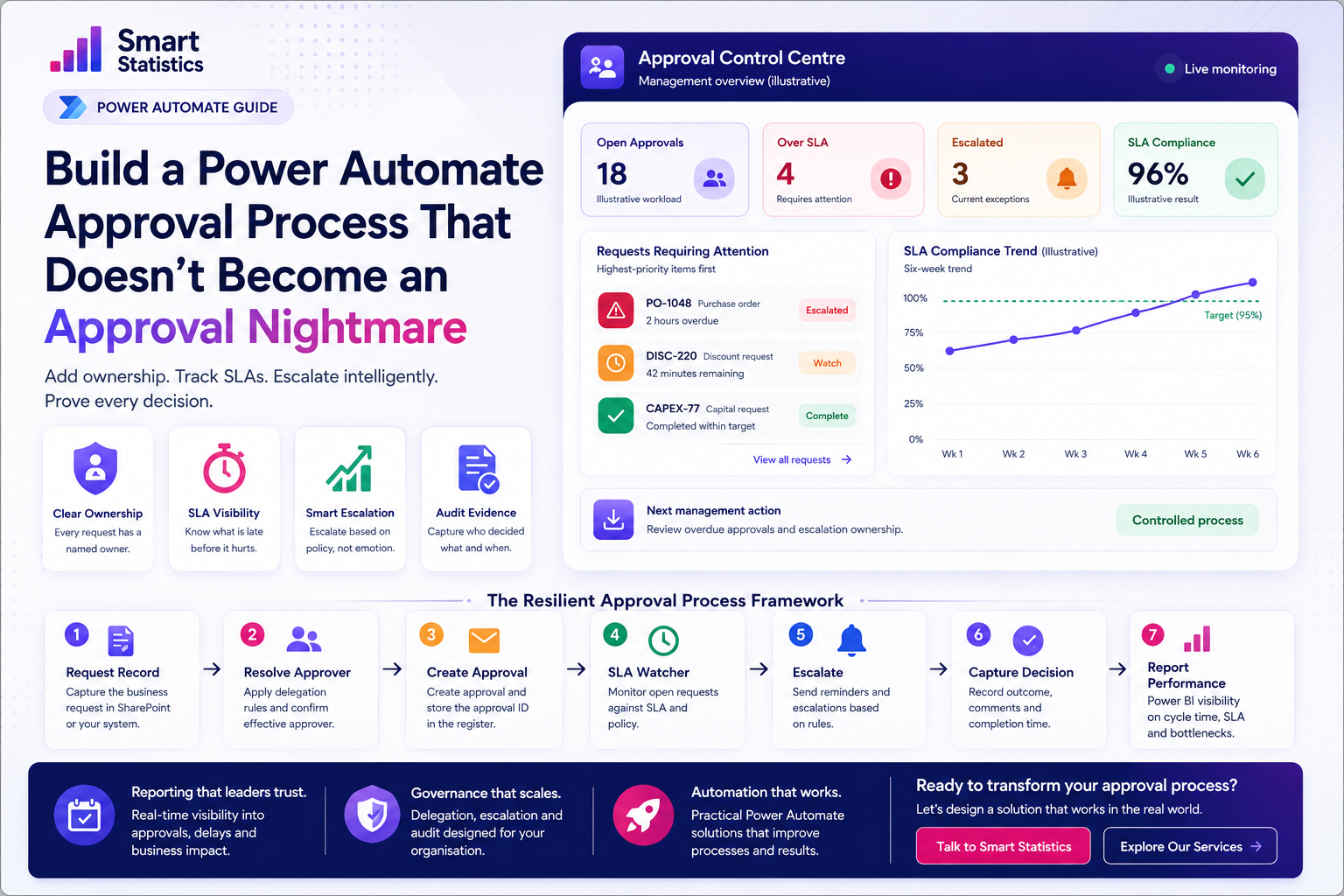
Build an Approval Process That Doesn't Become an Approval Nightmare
The first version of an approval flow is usually easy: submit a request, send it to somebody, wait for Approve or Reject, then update the record.
The difficult part starts when the flow meets the real organisation.
Approvers go on leave. Requests sit unanswered. Senior managers want escalation. Finance asks for evidence. Users chase approvals manually. Nobody knows which requests are actually overdue.
This tutorial shows how to design the process as a controlled approval system rather than a single email workflow.
Requests Requiring Attention
Highest-priority items firstSLA Compliance Trend
Illustrative six-week trendThe Approval Action Usually Works. The Operating Process Fails Around It.
Most approval problems are not caused by the Approve button. They are caused by missing ownership, no service level, no recovery path and poor visibility.
Nobody Owns the Delay
A request may be assigned to an approver, but once it becomes overdue there is often no defined owner responsible for recovering the process.
No SLA Exists
If the flow does not know when an approval becomes late, it cannot distinguish an ordinary pending request from a business exception.
Audit Evidence Is Fragmented
Email may contain part of the history, the flow run another part and the business record almost none of it.
Leave Breaks the Route
The approval is sent successfully — to somebody who may not look at it for a week.
Don't Build One Giant Flow. Build an Approval Control System.
Separating approval creation, SLA monitoring and reporting makes the process easier to maintain and far easier to diagnose when something goes wrong.
Request Record
SharePoint or another business data source stores the request.
Resolve Approver
Apply ownership and active delegation rules before sending.
Create Approval
Send the request and store the approval identifier.
SLA Watcher
A separate monitoring flow checks open requests.
Management View
Power BI exposes delays, ownership and bottlenecks.
Build the Process Step by Step
Create an Approval Control Register
The business request and the approval process should not exist only inside Power Automate run history.
Create a SharePoint list such as Approval Control Register.
Useful columns include:
- Request ID
- Business Process
- Requestor
- Original Approver
- Effective Approver
- Approval ID
- Approval Status
- Submitted Date/Time
- SLA Due Date/Time
- Escalation Level
- Last Reminder Date/Time
- Escalated Date/Time
- Completed Date/Time
- Outcome
- Approver Comments
Resolve Delegation Before Creating the Approval
Create a maintainable list such as Approval Delegation.
Example columns:
- Primary Approver
- Delegate Approver
- Start Date
- End Date
- Active
- Reason
Before creating an approval:
- Identify the primary approver.
- Search for an active delegation record.
- Check whether the current date falls inside the delegation period.
- Use the delegate as the Effective Approver when appropriate.
An illustrative expression for a delegation end-date check could use:
greaterOrEquals(
    items('Apply_to_each')?['EndDate'],
    utcNow()
)
Create the Approval Before You Wait for It
For important processes, consider using Create an approval followed by Wait for an approval.
The advantage is architectural: you can capture the approval identifier and update the control register before the flow enters its waiting state.
Suggested sequence:
- Create approval.
- Capture Approval ID.
- Write Approval ID to the control register.
- Set Status = Pending Approval.
- Set Submitted Date/Time.
- Set Effective Approver.
- Set SLA Due Date/Time.
- Then wait for the approval response.
For an illustrative 24-hour SLA:
addHours(
    utcNow(),
    24
)
Build a Separate SLA Watcher Flow
This is the part that turns the solution from an approval email into an operational control.
Create a scheduled cloud flow that runs at a frequency appropriate to your process.
It should retrieve records where:
- Status is still pending.
- SLA Due Date/Time is approaching or has passed.
- The request has not already been escalated to the same level.
Conceptually:
Status = "Pending Approval"

AND

SLA Due Date/Time <= utcNow()
The monitoring flow can then:
- Send an approver reminder.
- Notify a manager or process owner.
- Increase Escalation Level.
- Record Last Reminder Date/Time.
- Record Escalated Date/Time.
Design Escalation as a Policy, Not an Angry Email
Define escalation levels explicitly.
For example:
- Reminder: approaching SLA.
- Escalation Level 1: SLA breached — notify approver and team manager.
- Escalation Level 2: significant delay — notify process owner.
- Exception: request requires manual intervention.
Store the level on the control record so that the same escalation is not sent repeatedly.
Capture the Decision Back into the Business Record
Once the approval completes, update the control register immediately.
Capture:
- Outcome
- Responding approver
- Approver comments
- Completed Date/Time
- Final Status
- Total Approval Duration
You can calculate duration later in Power BI, so the SharePoint list does not necessarily need a permanent calculated-hours column.
Measure the Approval Process in Power BI
Approval automation should be measurable just like any other business process.
Useful Power BI measures include:
Open Approvals =
CALCULATE(
    COUNTROWS(
        'Approval Control Register'
    ),
    'Approval Control Register'[Approval Status]
        = "Pending Approval"
)
Overdue Approvals =
CALCULATE(
    COUNTROWS(
        'Approval Control Register'
    ),
    'Approval Control Register'[Approval Status]
        = "Pending Approval",
    'Approval Control Register'[SLA Due Date Time]
        < NOW()
)
Approval Duration Hours =
DIVIDE(
    DATEDIFF(
        MIN(
            'Approval Control Register'[Submitted Date Time]
        ),
        MAX(
            'Approval Control Register'[Completed Date Time]
        ),
        MINUTE
    ),
    60
)
You can then analyse performance by:
- Business process
- Approver
- Department
- Request type
- Escalation level
- Outcome
- Month or week
See When a Pending Request Becomes an Exception
Use the illustrative controls below to see how elapsed time and SLA policy change the operational status.
Approval Timing
These values are illustrative and do not represent a recommended universal SLA.
Illustrative Process Status
A monitoring flow can use the same principle against real date/time fields.
Measure the Process, Not Just the Decisions
Approval data becomes valuable when management can see where work is slowing down and whether escalation is actually improving performance.
Approval Cycle Time
Track typical decision time and identify slow processes.
Escalation Rate
See how often requests require intervention before completion.
SLA Compliance
Measure how much work completes inside the agreed target.
Approver Bottlenecks
Identify teams or roles where requests consistently wait longer.
Automation Should Strengthen Control, Not Hide It
Approval automation is strongest when responsibility, authority and evidence remain explicit.
Clear Authority
Delegation and escalation must respect who is authorised to make the underlying decision.
Permanent Evidence
Keep important approval metadata in the business record rather than relying only on flow history.
Exception Handling
Define what happens when a flow fails, an approver leaves or the request cannot proceed normally.
Continuous Review
Use process data to adjust SLAs, escalation levels and approval routing over time.
Power Automate Approval FAQs
Why separate approval creation from SLA monitoring?
Should I use Start and wait for an approval?
How should I handle staff absence?
Can Power Automate send reminders?
What should be stored for audit purposes?
Can approvals be reported in Power BI?
Should escalation automatically change the approver?
How can Smart Statistics help?
Approvals Should Move Work Forward — Not Disappear into Someone's Inbox.
Smart Statistics helps UK businesses replace fragile manual approval processes with structured Power Automate solutions that provide ownership, visibility, escalation and reporting.
Whether the process covers purchase orders, discounts, expenses, recruitment, capital expenditure or another business decision, the goal is the same: make the workflow reliable when real operational exceptions occur.