

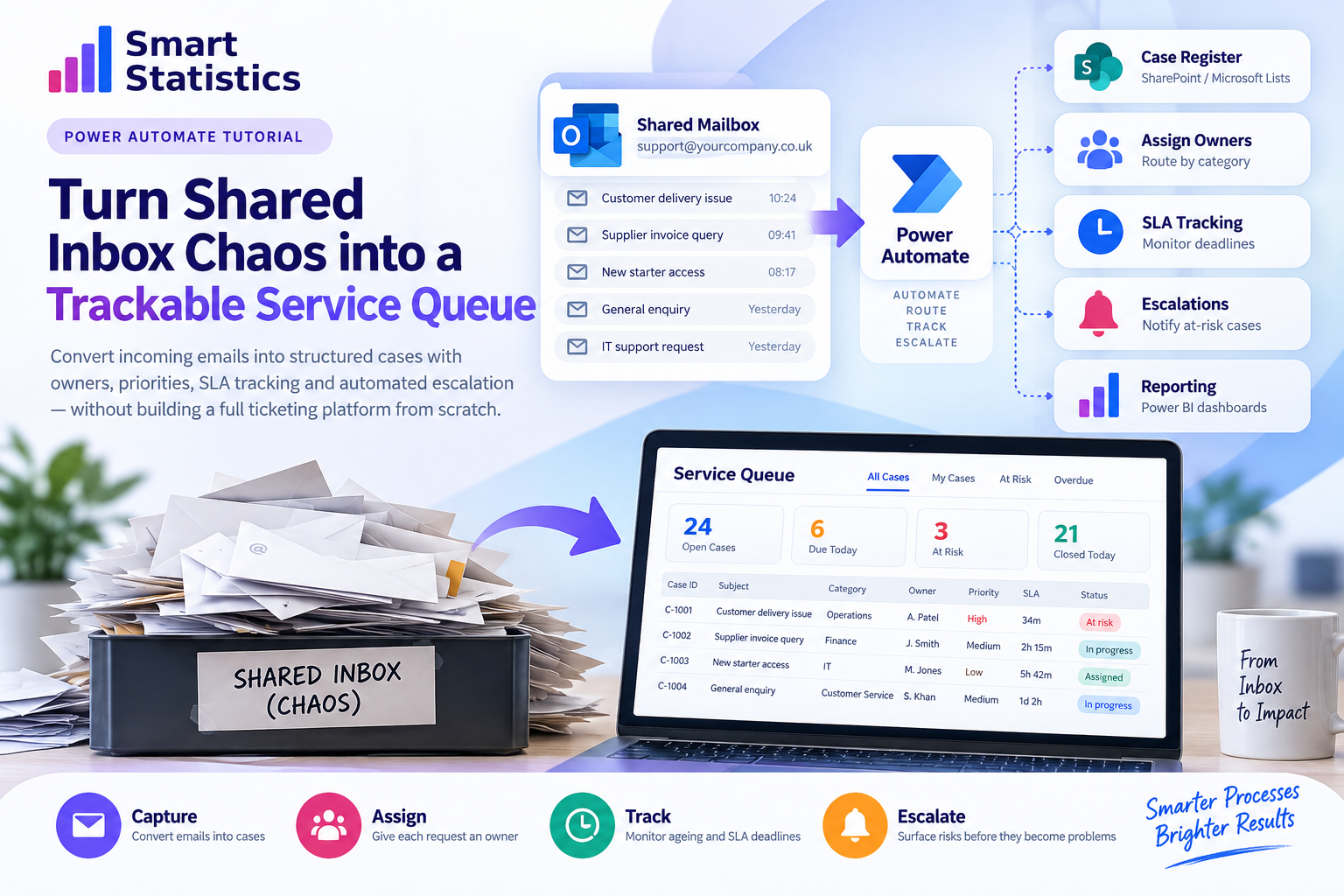
Turn Shared Inbox Chaos into a Trackable Service Queue
A shared mailbox can look deceptively simple. Customers, suppliers or internal teams send an email. Somebody reads it. Somebody replies.
But once volume grows, the weaknesses become obvious: messages are duplicated, ownership is unclear, urgent cases disappear among routine requests and managers cannot see whether response commitments are being met.
With Power Automate, you can keep email as the front door while creating a structured service process behind it — complete with case IDs, owners, priorities, SLA deadlines, escalation and reporting.
Cases Requiring Attention
Automation Stages
One illustrative case is approaching its response deadline. Notify the owner and escalate if the case remains open.
A Shared Mailbox Is Already a Queue. It Just Does Not Behave Like One.
Emails arrive one after another, but the mailbox itself does not automatically give each request ownership, priority, a target response time or a reliable operational status.
Inbox Ownership
Everyone can see the message, but that does not mean anyone is clearly accountable for resolving it.
Invisible Deadlines
Service commitments are often stored in policy documents rather than embedded into the work itself.
Urgent Work Gets Buried
A high-impact issue can sit between newsletters, routine questions and copied correspondence.
Reporting Is Weak
Managers can often count emails, but not easily measure backlog, ownership, ageing or response performance.
Keep Email as the Front Door. Build Structure Behind It.
Users can continue sending email as normal while automation creates the operational controls the mailbox itself lacks.
Shared Mailbox
Continue receiving requests through a familiar channel.
Power Automate
Convert incoming messages into structured work.
Case Register
Store case ID, owner, category, status and dates.
SLA Controls
Calculate target dates and monitor approaching breaches.
Management View
Monitor backlog, workload, ageing and service performance.
Build the Service Queue Step by Step
Create the Case Register
Start with the operational record rather than the email. Each eligible message should become a structured case.
A SharePoint list or Microsoft List could contain:
- Case ID
- Received date and time
- Sender name
- Sender email
- Email subject
- Category
- Priority
- Owner
- Status
- SLA due date
- Closed date
- Conversation or message reference
CaseID
ReceivedDateTime
SenderEmail
Subject
Category
Priority
Owner
Status
SLADueDate
ClosedDate
MessageId
Trigger the Flow When a New Email Arrives
Create an automated cloud flow using the appropriate shared-mailbox email trigger available in your Microsoft 365 environment.
Capture fields such as:
- From address
- Subject
- Received time
- Message ID
- Body preview or relevant body content
- Attachment indicator
Then create the case record.
New Email Arrives

→ Validate Sender / Folder

→ Create Case Record

→ Generate Case ID

→ Determine Category

→ Determine Priority

→ Calculate SLA Due Date
Classify Requests Before Assigning Them
Routing works better when the business agrees a small, useful set of categories rather than trying to detect hundreds of email variations.
An internal service mailbox might use:
Finance
Operations
Customer Service
IT
HR
Facilities
Other
Classification rules could use:
- Recipient address
- Subject keywords
- Sender domain
- Specific mailbox folder
- Form or template reference
Assign a Named Owner
The moment the case is created, make ownership explicit.
Routing can be based on:
- Category
- Location
- Customer
- Service type
- Team rota
- Priority
Conceptually:
If Category = "Finance"

    → Assign Finance Queue Owner

Else If Category = "IT"

    → Assign IT Queue Owner

Else

    → Assign Triage Owner
Calculate the SLA Deadline
Convert service expectations into data.
For example, an illustrative policy could be:
Critical:
Target response = 1 business hour

High:
Target response = 4 business hours

Standard:
Target response = 1 business day
In a simple implementation, the flow can calculate a deadline when the case is created and store it in SLADueDate.
Build a Separate Escalation Flow
Do not make the incoming-email flow wait for several hours simply to determine whether a case has become overdue.
Instead, create a scheduled flow that checks open cases.
Every Hour

→ Get Open Cases

→ Compare Current Time with SLA Due Date

→ Identify At-Risk Cases

→ Identify Breached Cases

→ Notify Owner

→ Escalate Where Required
An illustrative warning threshold might be:
If remaining SLA time <= 25%

    Status = "At Risk"

If current time > SLA due date

    Status = "Breached"
When Should the Flow Escalate?
Adjust the illustrative case age and target response time. The example below shows how an SLA risk indicator can change.
Illustrative Case
Use the controls to model a simple SLA position.
SLA Position
The visual indicator is illustrative and does not represent a contractual SLA calculation.
This case has consumed most of its illustrative response window.
Once Emails Become Cases, You Can Manage the Process
Structured records allow managers to move beyond counting messages and start measuring workload, service and operational risk.
Backlog
See open cases by team, category, priority and owner rather than relying on an unread-email count.
Ageing
Identify the oldest unresolved requests before they become forgotten problems.
SLA Risk
Surface cases approaching their target response time and focus management attention where it is needed.
Workload
Compare open work by owner or team and identify where demand is becoming concentrated.
Shared Mailbox Automation FAQs
Can Power Automate monitor a shared mailbox?
Can every email automatically become a case?
Can Power Automate track SLA deadlines?
Do we need Power Apps for this solution?
Can the automation assign different owners?
Can we notify customers automatically?
Can Power BI report on the queue?
How can Smart Statistics help?
The Problem Is Not That Work Arrives by Email. The Problem Is When Email Is the Only System Managing the Work.
A shared mailbox can remain the familiar point of contact while Power Automate adds the controls the process needs behind the scenes: case IDs, ownership, deadlines, escalation and management visibility.
Smart Statistics helps UK businesses identify everyday operational processes that can be made clearer, faster and more measurable using Microsoft Power Platform and Microsoft 365.