

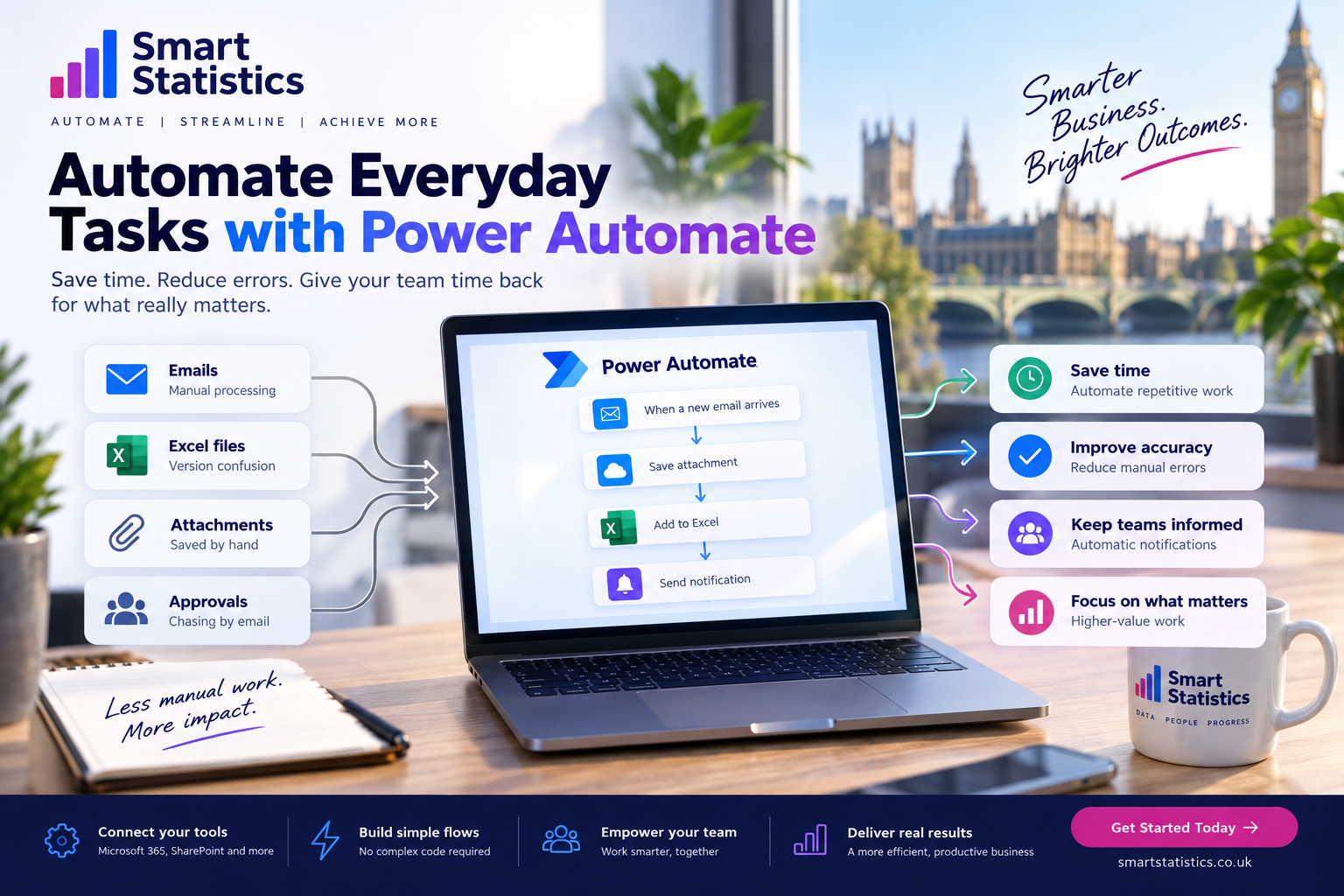
Automate Everyday Tasks with Power Automate
Business automation does not have to begin with a huge transformation programme.
Some of the most useful automation opportunities are hiding in everyday work: saving email attachments, updating tracking lists, chasing approvals, sending reminders and notifying colleagues when something needs attention.
Power Automate can connect these small steps into repeatable workflows so employees spend less time moving information between Microsoft 365 tools and more time using that information to make decisions.
Automate repeatable steps while keeping judgement, exception handling and important approvals visible to the people responsible for them.
The Best Automation Candidates Usually Leave Clues
You do not need a complex process-mining programme to identify useful first projects. Listen to how employees describe their work.
“I Do This Every Day”
High-frequency tasks create recurring automation value even when each individual task only takes a few minutes.
“Then I Copy It Here”
Re-entering information between email, Excel, SharePoint or Microsoft Lists is a strong signal that systems can be connected.
“I Have to Chase Them”
Approval and reminder processes frequently depend on employees remembering which requests are still outstanding.
“We Only Notice When It Goes Wrong”
Exception notifications can surface overdue, missing or unusual conditions before they become customer or operational problems.
Start with Workflows People Already Understand
These are not the only things Power Automate can do. They are simply practical patterns that appear repeatedly in Microsoft 365 environments.
Email & Attachments
Capture eligible messages and store attachments consistently.
Approvals
Route decisions, record outcomes and stop chasing by email.
Reminders
Notify owners before dates, certificates or actions become overdue.
Tracker Updates
Keep lists and operational records aligned with real events.
Exception Alerts
Notify people when something important falls outside the rules.
Five Power Automate Flows You Can Adapt to Your Business
Flow 1: Save Important Email Attachments Automatically
Many organisations still rely on somebody opening an email, downloading an attachment, renaming it and saving it into the correct folder.
A basic flow can monitor a mailbox and save qualifying attachments into SharePoint.
When a new email arrives

→ Check sender / subject / mailbox folder

→ Confirm attachment exists

→ Create file in SharePoint

→ Store useful metadata

→ Notify the owner if required
Useful metadata could include:
- Received date
- Sender
- Document type
- Customer or supplier
- Original email subject
Flow 2: Replace Email Approval Chasing
Approval by email works until volume increases. Requests become difficult to track and employees cannot easily see whether a decision is waiting, approved or rejected.
Store the request first, then send the approval.
New Request Created

→ Validate Required Fields

→ Identify Approver

→ Start Approval

→ Wait for Outcome

→ Update Request Status

→ Record Approver + Decision Date

→ Notify Requester
Useful examples include:
- Purchase requests
- Expense approvals
- Discount requests
- Document sign-off
- Operational exceptions
Flow 3: Send Reminders Before Something Becomes Overdue
Reminder automation is particularly useful when an operational list already contains a target date.
Examples include:
- Contract renewals
- Training expiry dates
- Document reviews
- Outstanding actions
- Customer follow-ups
Rather than creating one long-running flow for every record, use a scheduled flow to check upcoming dates.
Every Morning

→ Get Open Records

→ Compare Due Date with Today

→ Identify Records Due Soon

→ Notify Responsible Owner

→ Escalate Overdue Records if Required
Flow 4: Keep Operational Trackers Updated
If employees repeatedly update a tracker after completing another activity, that update may be automatable.
For example, when a form is submitted or a SharePoint item changes:
Business Event Occurs

→ Find Related Record

→ Update Status

→ Add Completion Date

→ Store Responsible Person

→ Create Audit Note

→ Notify Interested Team
Suitable destinations may include:
- SharePoint lists
- Microsoft Lists
- Dataverse
- Approved Excel tables for lighter processes
Flow 5: Notify People Only When an Exception Needs Attention
Automation becomes more valuable when it removes noise instead of creating more notifications.
Rather than emailing every successful transaction, notify people when a condition requires intervention.
Process Record

→ Test Business Condition

If Everything Is Normal
    → Continue Silently

If Exception Detected
    → Notify Owner
    → Record Exception
    → Escalate if High Priority
Example exception conditions might include:
- Missing mandatory information
- Value above an approval threshold
- Deadline breached
- Failed integration
- Unexpected status change
Is This Process a Good Automation Candidate?
Select the statements that describe the process you are considering. The result is an illustrative guide rather than a formal assessment.
Process Characteristics
Good first automations are normally stable, repetitive and governed by understandable business rules.
Illustrative Automation Fit
This score reflects only the statements selected on this page.
Select the characteristics that apply to the process.
The Flow Is Only Part of the Business Solution
Small automations can become business-critical surprisingly quickly. Treat ownership, monitoring and change control as part of the design.
Named Ownership
Know who owns the business process and who supports the automation when something changes.
Secure Connections
Review service accounts, permissions and connection ownership rather than allowing important flows to depend on one employee.
Failure Monitoring
Decide how failed runs will be detected and who receives actionable alerts.
Documentation
Record the trigger, purpose, data sources, business rules, owner and dependencies of important automations.
Power Automate Business Automation FAQs
What should we automate first with Power Automate?
Does Power Automate require coding?
Can Power Automate work with Outlook and SharePoint?
Can Power Automate update Excel automatically?
Should every manual task be automated?
How should failed flows be handled?
Can Power Automate work with Power Apps?
How can Smart Statistics help?
Automation Does Not Have to Start with Your Biggest Process. Start with the Repetitive Work People Wish They Did Not Have to Do.
A few well-designed workflows can remove hours of repetitive administration, improve consistency and give employees more time for the work that genuinely requires their judgement.
Smart Statistics helps UK businesses identify, design and implement practical Power Automate solutions across Microsoft 365.