

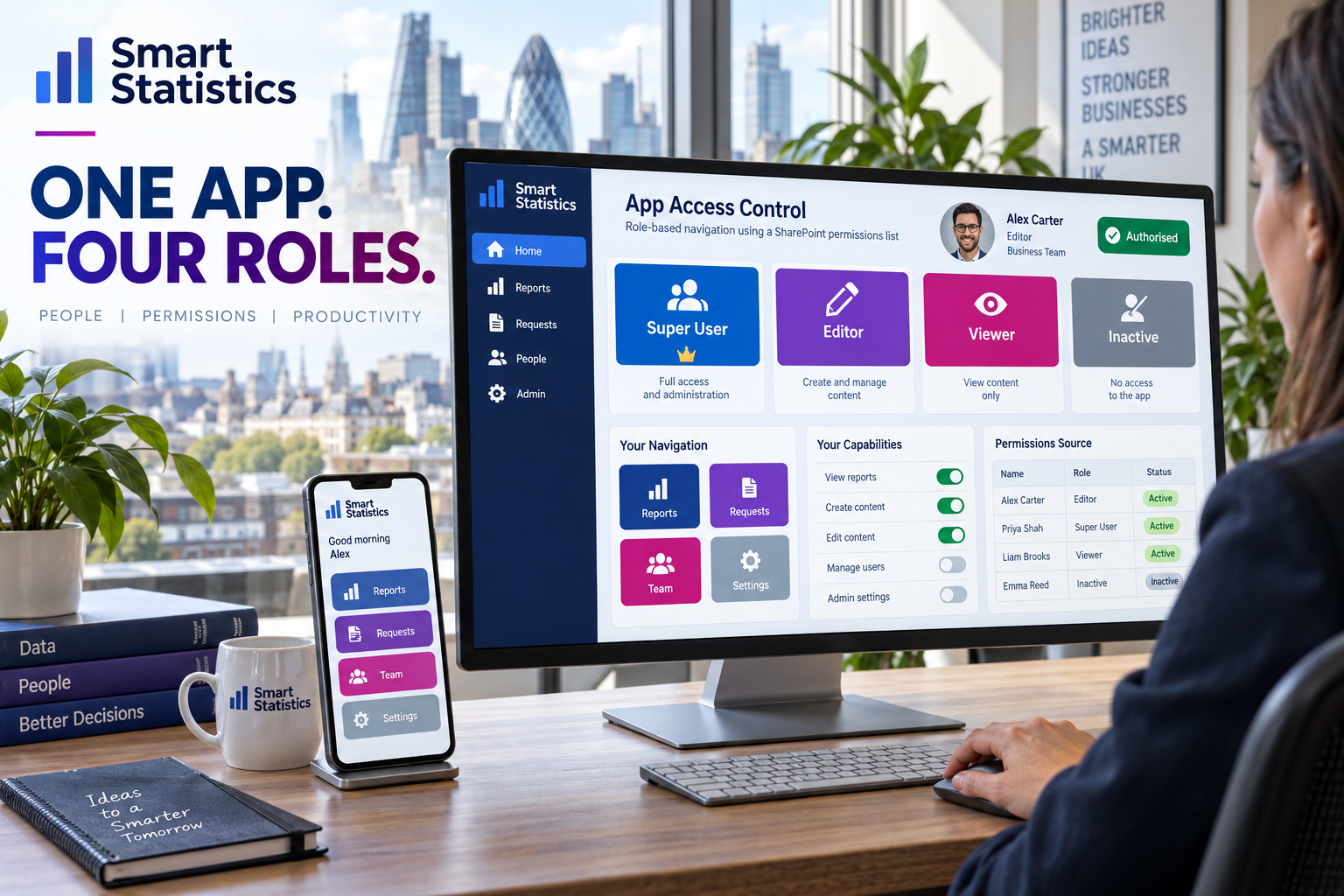
One app. Four roles. The right navigation for each user.
Build role-aware navigation for a canvas app with a SharePoint permissions list, standard Microsoft 365 connectors and Power Fx that denies access when no valid permission exists.
Example access configuration, not a live tenant.
Hidden navigation is an experience control—not a security boundary
This tutorial controls what the app shows and where a user can navigate. It does not replace SharePoint permissions, Microsoft Entra controls or data-source security. A user who can reach the underlying list outside the app may still access it. Apply least-privilege access to each SharePoint list and site separately.
Use broad roles for clarity and capability flags for exceptions
A single role column stays understandable. Separate yes/no flags stop the app becoming a maze of one-off roles such as “Editor-but-no-export”.
Super User
Full in-app administration and all business actions.
- Manage access
- Create, edit and delete
- Export and administer
Editor
Works with operational records within assigned capability flags.
- Create when enabled
- Edit when enabled
- No implicit administration
Viewer
Reads approved app content without record-changing actions.
- View screens
- Read-only forms
- No create, edit or delete
Inactive
Keeps an auditable row while denying entry to protected screens.
- Access denied screen
- No business navigation
- Remove source access separately
Create one controlled SharePoint list with one row per user
Name the list App Permissions. Keep identity, role, active status and capabilities explicit so owners can review access without opening the app editor.
| Column | Type | Purpose | Example |
|---|---|---|---|
| Title | Single line text | Readable person or team name | Alex Carter |
| UserUPN | Single line text | Lower-case sign-in identity used by the app | alex@contoso.co.uk |
| Role | Choice | Super User, Editor, Viewer or Inactive | Editor |
| Active | Yes/No | Independent access switch | Yes |
| CanCreate | Yes/No | Allows new business records | Yes |
| CanEdit | Yes/No | Allows changes to existing records | Yes |
| CanDelete | Yes/No | Allows deletion through the app | No |
| CanExport | Yes/No | Allows export actions in the app | No |
| LastReviewed | Date | Supports periodic access review | 18 Sep 2026 |
| Notes | Multiple lines | Reason, owner or temporary restriction | Operations editor |
UserUPN to enforce unique values where your list design supports it, and index it for reliable lookup performance. Store values in lower case. Restrict permission-list editing to authorised app owners.Load the permission once, fail closed and gate every sensitive route
The formulas below use a dedicated loading screen. Do not split dependent setup between App.OnStart and a screen’s OnVisible; Microsoft notes that they can run in parallel.
Connect the list and start on a loading screen
Add the SharePoint App Permissions list as a data source. Create scrLoading, scrHome and scrAccessDenied. Set App.StartScreen to:
scrLoadingKeep scrLoading free of business data. Show a short “Checking access” message and a non-sensitive brand mark.
Load one permission record in scrLoading.OnVisible
This formula normalises the current user’s sign-in identity, retrieves their active permission record and routes unknown or inactive users to a denied screen.
Set(
    varCurrentUPN,
    Lower(User().Email)
);

Set(
    varPermission,
    LookUp(
        'App Permissions',
        UserUPN = varCurrentUPN &&
        Active = true
    )
);

Set(
    varIsAuthorised,
    !IsBlank(varPermission) &&
    varPermission.Role.Value <> "Inactive"
);

If(
    varIsAuthorised,
    Navigate(scrHome, ScreenTransition.None),
    Navigate(scrAccessDenied, ScreenTransition.None)
)
User().Email returns the current user’s UPN, which can differ from their SMTP email address. Populate UserUPN with the identity Power Apps actually returns. Test guest and changed-name accounts explicitly.
UserUPN in Lower() inside the query. Watch the authoring formula for delegation warnings and test against a representative list; a nondelegable query only evaluates the configured record limit.Control menus and actions with one readable rule
Set each navigation item or action button’s Visible property. Super Users inherit all capabilities; other roles need the relevant flag.
varIsAuthorised &&
(
    varPermission.Role.Value = "Super User" ||
    varPermission.CanCreate
)varIsAuthorised &&
(
varPermission.Role.Value = "Super User" ||
varPermission.CanEdit
)varIsAuthorised &&
varPermission.Role.Value = "Super User"If(
varPermission.Role.Value = "Viewer" ||
!varPermission.CanEdit,
FormMode.View,
FormMode.Edit
)Use DisplayMode.Disabled instead of hiding an action when people need to understand that the capability exists but is unavailable. Add accessible labels that explain the state.
Add a screen-level guard as defence in depth
A hidden menu item is not enough. A saved link, deep link or formula can still attempt navigation. Add a guard to the OnVisible property of each restricted screen.
If(
    !varIsAuthorised ||
    !(
        varPermission.Role.Value = "Super User" ||
        varPermission.CanEdit
    ),
    Navigate(
        scrAccessDenied,
        ScreenTransition.None
    )
)Provide a controlled way to reload changed access
Permission changes are cached in varPermission for the current session. Add a “Refresh access” action for support use, or require the user to reopen the app after an access change.
Refresh('App Permissions');

Set(
    varPermission,
    LookUp(
        'App Permissions',
        UserUPN = varCurrentUPN &&
        Active = true
    )
);

Set(
    varIsAuthorised,
    !IsBlank(varPermission) &&
    varPermission.Role.Value <> "Inactive"
);

If(
    !varIsAuthorised,
    Navigate(scrAccessDenied, ScreenTransition.None),
    Notify(
        "Your app access has been refreshed.",
        NotificationType.Success
    )
)
For an urgent leaver or compromised account, remove access at the SharePoint and identity layers as well. An app refresh button is not an emergency revocation control.
Test identities, transitions and bypass attempts
Use separate test accounts for each role. Do not rely only on temporarily changing your own row because cached sessions and elevated maker access can conceal defects.
| Scenario | Expected app result | Separate source check |
|---|---|---|
| No permission row | Access denied | No unintended SharePoint access |
| Inactive row | Access denied | Underlying access removed if required |
| Viewer | Read-only screens and forms | Cannot update through SharePoint |
| Editor without delete | Create/edit shown; delete absent or disabled | List rights align with policy |
| Super User | Admin navigation and all approved actions | Membership is tightly controlled |
| Access changed mid-session | New state after refresh or restart | Revocation timing documented |
| Direct restricted-screen route | Redirect to access denied | Direct list access still controlled |
Make access ownership visible after launch
The pattern remains trustworthy only when somebody owns the list, reviews access and removes permissions promptly.
Name an owner
Assign a business owner for role decisions and a technical owner for the app and data sources.
Review evidence
Use LastReviewed, reason and approver fields to support periodic access certification.
Separate duties
A person should not approve their own elevation to Super User or edit the permission source without oversight.
Measure removal
Track time from a role or leaver event to app and SharePoint access removal.
Is your role-aware app ready for real users?
Select each statement that is true. This illustrative assessment is not a security audit.
Questions to settle before production release
Does hiding a button secure SharePoint data?
No. Visibility and screen guards control the app experience, not the underlying data boundary. Apply appropriate permissions to the SharePoint site and lists so users cannot bypass the app to reach data they should not see.
Why might User().Email differ from a person’s email address?
Microsoft documents that User().Email returns the current Power Apps user’s UPN, not their SMTP email address. Store and test the identity returned by the app, especially for guests or renamed accounts.
What happens if two permission rows use the same UPN?
LookUp returns one matching record, which can make the effective permission ambiguous. Prevent duplicates in SharePoint and treat one active row per UPN as a controlled data-quality rule.
Why does an access change not appear immediately?
The tutorial stores the permission record in a variable for the current session. Refresh the data source and rerun the lookup, or restart the app. Use identity and SharePoint controls for urgent revocation.
Can guest users use this approach?
They can be represented, but their returned identity and underlying SharePoint access must match the design. Test with real guest accounts and never assume an external email address equals the Power Apps UPN.
Does this pattern require a premium connector?
The tutorial uses the standard SharePoint connector and Power Fx. Licensing still depends on the complete app, tenant, environment and any other connectors or features used, so confirm the final design against current Microsoft licensing.
Give every Power Apps user the right route—and protect the data underneath it
Smart Statistics helps UK businesses design maintainable Power Apps, SharePoint data structures, permissions models and reporting controls. Start with one important app and make role ownership, access decisions and revocation explicit.
Technical references
Microsoft documentation checked on 19 September 2026. Roles, fields, formulas, testing matrix and governance recommendations are illustrative Smart Statistics guidance and must be adapted to your tenant and security requirements.
- Power Fx User function and UPN behaviour
- Power Apps delegation overview and query limits
- Screen controls, OnVisible and App.OnStart timing
- Power Apps App object and StartScreen property
- Connecting SharePoint lists to Power Apps
- SharePoint connector classification and reference
- Power Fx formula reference