

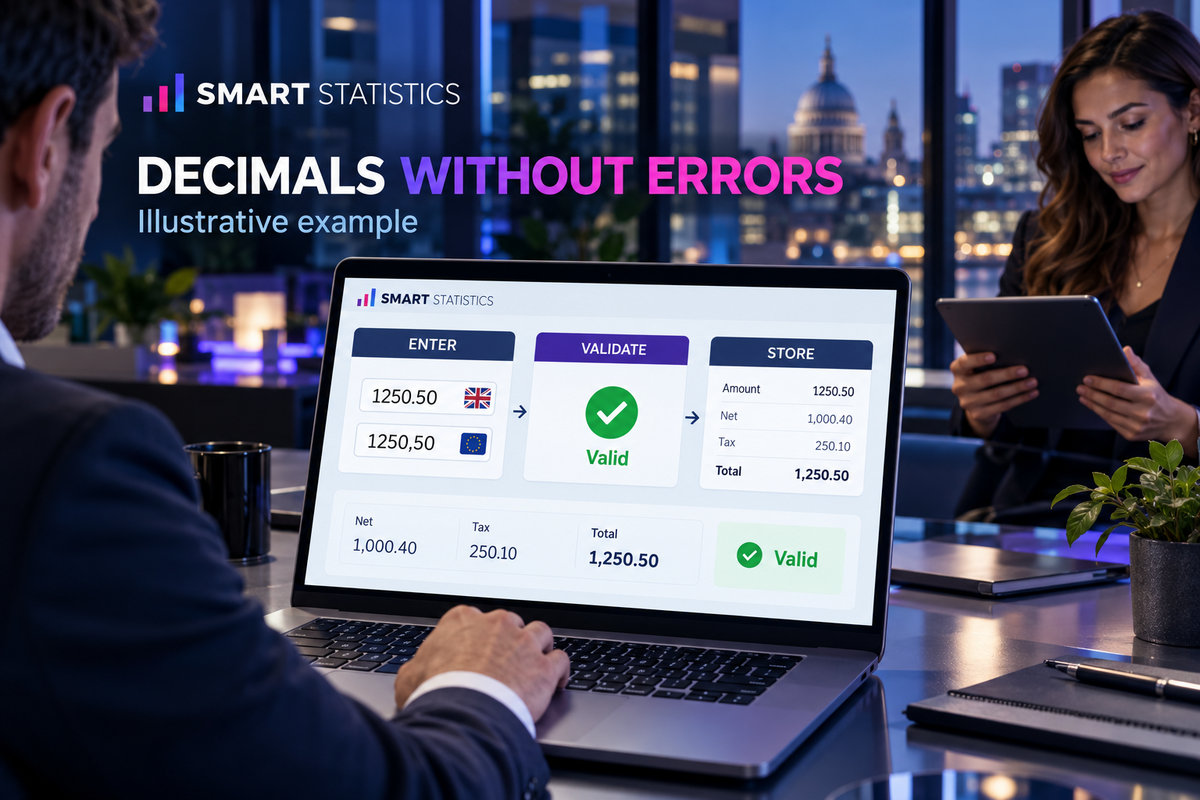
Power Apps Decimal Input for International Teams: Support Commas and Full Stops Safely
A UK finance app can fail quietly when one colleague enters 1250.50 and another expects 1250,50. This tutorial keeps the field numeric-only, respects each user's locale and stores one dependable number.
Why this matters
The punctuation is presentation; the value is business data
A decimal separator looks like a small interface choice. In practice it can change totals, tax calculations, approval thresholds and Power BI measures.
Locale is ignored
The app assumes every user types a full stop, so a colleague with a comma-decimal keyboard cannot enter a familiar value cleanly.
Numbers become text
A formatted string may look right on screen but sorts, aggregates and exports incorrectly. The defect appears downstream, not at entry.
Ambiguity is normalised blindly
Replacing punctuation without a locale rule can make
1.250 mean 1.25 in one country and
1,250 in another.
What good looks like
Input language → numeric validation → numeric storage
→ locale-aware display.
Microsoft documents that the modern Number Input exposes
a numeric Value, supports precision, min/max
validation and a ContentLanguage property.
That makes it the right default for controlled amounts,
quantities and percentages.
Hands-on build
Configure a safe decimal field in seven steps
The example uses a modern Number Input named
numNetAmount, a numeric data-source column named
NetAmount and two supported language paths:
en-GB and pt-PT.
1. Define the numeric contract before the control
Record the business meaning, column type, precision,
permitted range, blank rule, negative-value rule and
supported languages. For an expense amount, a sensible
contract might be: currency column, two decimals,
£0–£1,000,000, required, no negatives,
en-GB and pt-PT.
2. Map each user to an approved input language
Language() returns the current user's
language tag. Map it to the locales the app has
actually been designed and tested to support.
Do not accept arbitrary regional variants without
a test route.
// App.OnStart or screen.OnVisible
Set(
    varInputLanguage,
    If(
        StartsWith(Language(), "pt"),
        "pt-PT",
        "en-GB"
    )
);
3. Configure the modern Number Input
Set the properties below on
numNetAmount. A Portuguese user sees
and enters a comma decimal; a UK user sees and enters
a full stop. The output remains the numeric
numNetAmount.Value.
// numNetAmount properties
ContentLanguage = varInputLanguage
Precision       = DecimalPrecision.'2'
Min             = 0
Max             = 1000000
Step            = 0.01
AccessibleLabel = "Net amount in pounds, to two decimal places"
Microsoft states that the control's
OnChange fires when focus leaves the field
or when a step button is used—not on every keystroke.
Put save-time validation on the submit action as well
as visual feedback on the control.
4. Make validation visible and accessible
Use the control's validation state and a nearby label. Avoid relying on border colour alone; give people a clear message that a screen reader can announce.
// numNetAmount.ValidationState
If(
    IsBlank(numNetAmount.Value) ||
    numNetAmount.Value < 0 ||
    numNetAmount.Value > 1000000,
    ValidationState.Error,
    ValidationState.None
)

// lblNetAmountError.Text
"Enter an amount from 0.00 to 1,000,000.00"

// lblNetAmountError.Visible
numNetAmount.ValidationState = ValidationState.Error
5. Save the numeric value, not the formatted string
Patch .Value into a numeric or currency
column. Round at the agreed storage boundary, not
repeatedly during intermediate calculations.
If(
    IsBlank(numNetAmount.Value) ||
    numNetAmount.Value < 0 ||
    numNetAmount.Value > 1000000,
    Notify(
        "Check the net amount before saving.",
        NotificationType.Error
    ),
    Patch(
        Expenses,
        Defaults(Expenses),
        {
            NetAmount: Round(numNetAmount.Value, 2),
            TaxAmount: Round(Coalesce(numTaxAmount.Value, 0), 2)
        }
    )
)
6. Separate calculation from display
Calculate with numbers. Use Coalesce when
a genuinely optional numeric value should behave as
zero, then apply Text only in a read-only
label.
// Numeric calculation
With(
    {
        NetValue: Coalesce(numNetAmount.Value, 0),
        TaxValue: Coalesce(numTaxAmount.Value, 0)
    },
    NetValue + TaxValue
)

// Read-only label: fixed GBP, user's separators
Text(
    Coalesce(varTotalAmount, 0),
    "[$-en-GB]£#,##0.00",
    Language()
)
The format-language placeholder tells Power Fx how to interpret the format string; the third argument tells it how the result should appear for the user.
7. Run the locale and boundary test matrix
Test with accounts whose language settings actually follow each route. Confirm the value both before and after save, then compare the underlying data-source value with the displayed label.
| User route | Entered value | Expected numeric value | Expected result | Reason |
|---|---|---|---|---|
| en-GB | 1250.50 |
1250.50 | Accept | Full stop is the configured decimal separator. |
| pt-PT | 1250,50 |
1250.50 | Accept | Comma is the configured decimal separator. |
| Either route | Blank | Blank | Block | The example's business rule makes the amount required. |
| Either route | -0.01 |
None | Block | Below the permitted minimum. |
| Either route | 1000000.01 |
None | Block | Above the permitted maximum. |
| Either route | Three decimal places | None or controlled rounding | Verify | Behaviour must match the agreed two-decimal contract. |
Decision criteria
Use the simplest control that protects the meaning
Choose the entry pattern by data risk, not visual preference.
Use modern Number Input when…
- The field must remain numeric-only.
- You need min/max boundaries and controlled precision.
-
Each session can use one known
ContentLanguage. - The output should be patched directly as a number.
Stop and redesign when…
- A single user must switch conventions inside one session.
- Values arrive pasted with unknown grouping separators.
- Currency and unit are mixed into the same field.
- The destination column is text but the business meaning is numeric.
Governance and ownership
Make decimal handling a controlled design decision
The best-practice pattern survives release because ownership, tests and measures are explicit.
Business owner
Defines the meaning, range, precision, whether blank is allowed and when rounding happens.
App owner
Maintains locale mapping, control properties, accessible errors, data-source types and regression tests.
Service owner
Monitors validation failures, abandoned submissions, correction rates and downstream reconciliation differences.
Measure business impact
Track invalid-entry rate, save success by locale, finance correction rate, time to complete, duplicate resubmissions and differences between app totals and the system of record. A good release reduces rework without shifting errors downstream.
Readiness assessment
Is your decimal input ready for international users?
Tick each control you already have. The score updates locally in the browser and does not submit data.
Frequently asked questions
Power Apps decimal input FAQs
Should a Power Apps decimal field be stored as text?
No. Store the value in a numeric or currency column. Formatting belongs in the user interface; storing formatted text makes calculation, sorting, aggregation and Power BI reporting less reliable.
How does Power Apps know whether a comma or full stop is the decimal separator?
The modern Number Input control uses its ContentLanguage setting. Set that property to an approved language tag, normally derived from Language(), so a UK user can enter a full stop and a comma-decimal user can use their familiar convention.
Can one numeric field accept both separators at the same time?
Do not make that the default. A string such as 1.250 is ambiguous across locales. Select one input language for each user session, keep the control numeric-only and test the supported locale paths.
What should be tested before release?
Test every supported locale, decimal precision, minimum and maximum values, blank behaviour, negative numbers where relevant, calculation totals, saved column types and the read-only display format on desktop and mobile.
Does changing ContentLanguage translate the whole app?
No. ContentLanguage controls the language used for the input text. Labels, help text and messages still need a separate localisation approach, while Text can format read-only numbers for the user's display language.
Technical references
Current Microsoft documentation used
Technical claims were checked against Microsoft Learn on 12 October 2026. The business examples and dashboard figures in this article are illustrative.
-
Number Input modern control in canvas apps
—
Value,Precision, min/max validation,OnChange, accessibility andContentLanguage. -
Global support in Microsoft Power Fx
—
Language(), regional number conventions and locale-aware input. - Text function — custom number-format placeholders and result language tags.
- Value function — explicit language tags and the different meanings of comma and full stop across languages.