

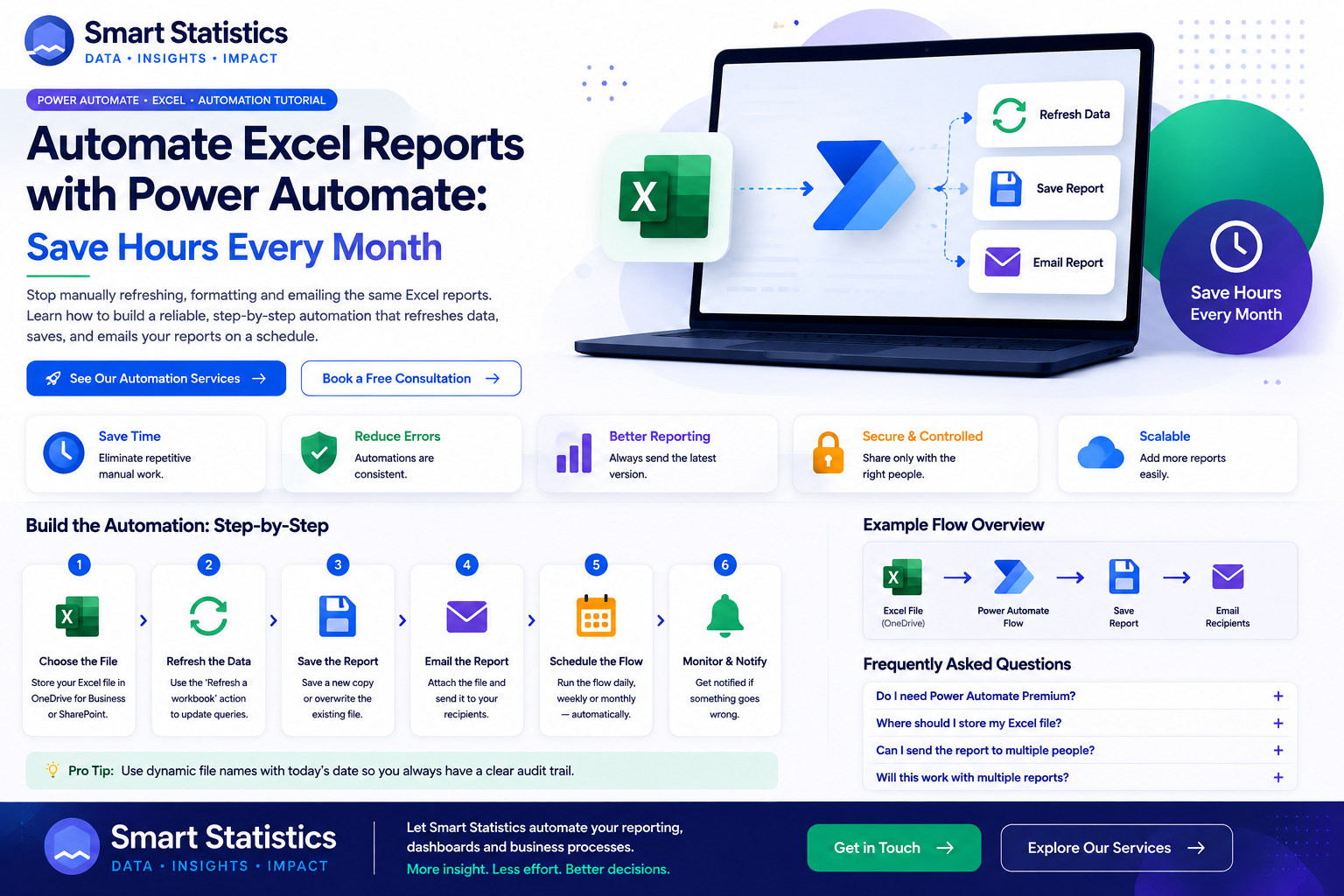
Automate Excel Reports with Power Automate: Save Hours Every Month
Many recurring management reports follow the same routine: open the workbook, prepare the reporting sheet, save a dated copy, attach it to an email and send it to the same group of people.
Power Automate can remove much of that repetitive process. With a scheduled cloud flow, Excel Online, Office Scripts and SharePoint or OneDrive, you can create a controlled reporting workflow that runs consistently without somebody manually rebuilding the same output every week or month.
Remove Manual Steps Without Losing Control
The goal is not simply to send emails faster. A good reporting automation creates a repeatable, controlled process with fewer manual hand-offs.
Save Administrative Time
Remove repetitive preparation, saving and email steps from the reporting cycle.
- Scheduled execution
- Automatic file naming
- Automatic distribution
Improve Consistency
The same script and flow perform the preparation sequence every reporting period.
- Repeatable formatting
- Consistent filename pattern
- Controlled recipients
Create an Audit Trail
Store dated report copies and use Power Automate run history to understand when the process executed.
- Dated outputs
- Flow run history
- Controlled document library
Scale the Process
Once the pattern works, similar reporting processes can reuse the same architecture.
- Weekly operations reports
- Monthly finance packs
- Customer or branch reports
The Reporting Flow at a Glance
The flow below separates data preparation from report packaging and distribution.
1. Recurrence
Start the process at the agreed reporting time.
2. Office Script
Apply workbook preparation and reporting formatting.
3. Create Copy
Save the controlled report with a dynamic filename.
4. Email
Send the finished report to the required audience.
5. Monitor
Check failures and maintain the reporting process.
Build the Automation from Start to Finish
This example assumes the workbook is already populated with the data required for reporting, or that the data is updated by a separate supported upstream process.
Store the workbook in SharePoint or OneDrive
Put the controlled workbook in a document library that Power Automate can access.
Example:
- SharePoint site → Finance Reporting
- Library → Shared Documents
- Folder → Management Reports
- Workbook → MonthlyManagementReport.xlsx
Prepare a dedicated Report sheet
Create a worksheet that represents the final output management should receive.
A simple layout might contain:
- Report title
- Reporting date
- Headline KPIs
- Monthly trend
- Variance analysis
- Comments or exceptions
This allows the automation to format one known reporting surface rather than manipulating arbitrary worksheets.
Create an Office Script
Open the workbook in Excel for the web and create an Office Script that prepares the report.
function main(workbook: ExcelScript.Workbook) {

    const reportSheet = workbook.getWorksheet("Report");

    const usedRange = reportSheet.getUsedRange();

    if (usedRange) {
        usedRange.getFormat().autofitColumns();
    }

    reportSheet.getRange("B2").setValue(
        new Date().toISOString()
    );

    reportSheet.getRange("B2").setNumberFormat(
        "dd mmmm yyyy"
    );

    reportSheet.getRange("A1:H1")
        .getFormat()
        .getFont()
        .setBold(true);

    return {
        status: "Prepared",
        preparedAt: new Date().toISOString()
    };
}
This example:
- Finds the Report worksheet.
- Autofits the used columns.
- Writes the preparation date to B2.
- Applies simple formatting.
- Returns a status to Power Automate.
Create a scheduled cloud flow
In Power Automate create a Scheduled cloud flow.
Example monthly schedule:
- Frequency → Month
- Interval → 1
- Day → 1
- Time → 07:00
Add the Excel Online Run script action
Add the Excel Online (Business) action Run script.
Configure:
- Location → SharePoint Site or OneDrive for Business
- Document Library → your reporting library
- File → MonthlyManagementReport.xlsx
- Script → Prepare Monthly Report
Select the workbook using the file picker rather than manually typing the filename.
Understand the Excel refresh limitation
This is an important architectural point.
Office Scripts called through Power Automate
currently do not refresh most Excel data
connections. Microsoft documents that
refreshAllDataConnections() only
refreshes Power BI sources when the script is
executed by Power Automate.
Safer options include:
- Update the workbook data upstream before the reporting flow.
- Populate an Excel Table directly using a supported connector.
- Move recurring transformation into SQL, Power BI or Microsoft Fabric.
- Use an architecture where the workbook consumes already-prepared data.
Build a dynamic report filename
Add a Compose action and use:
concat(
    'Management-Report-',
    formatDateTime(
        utcNow(),
        'yyyy-MM-dd'
    ),
    '.xlsx'
)
An example output is:
Management-Report-2026-08-25.xlsx
Dynamic filenames make the reporting archive easier to navigate and audit.
Retrieve the source workbook content
Add the SharePoint or OneDrive action Get file content.
Select the controlled source workbook.
This returns the workbook binary content so Power Automate can create the dated report copy.
Create the archived report copy
Add Create file.
Example configuration:
- Folder → /Management Reports/Archive
- File Name → output from your filename Compose action
- File Content → output from Get file content
This leaves the controlled source workbook in place and creates a dated archive version.
Retrieve the newly created report
Add another Get file content action that points to the archived report created by the previous step.
This content becomes the email attachment.
Send the report by email
Add Send an email (V2).
Example subject:
Monthly Management Report - @{formatDateTime(utcNow(),'MMMM yyyy')}
Attach:
- Attachment Name → dynamic report filename
- Attachment Content → archived report file content
Add failure notification
Add a separate notification action configured with Run after so it executes if a key preparation or file action:
- has failed
- has timed out
The notification should tell the report owner:
- which flow failed
- when it failed
- which reporting period was affected
- where to review the flow run
Test the complete process
Run the flow manually before relying on the schedule.
Confirm:
- The correct workbook is selected.
- The Office Script finishes successfully.
- The report date is updated.
- The archived filename is correct.
- The archive copy opens successfully.
- The email contains the correct file or link.
- The recipient list is correct.
Build an Automation That Can Be Supported
The flow becomes part of the reporting process, so ownership, monitoring and change control matter.
Assign Ownership
Document who owns the workbook, Office Script, flow, recipients and reporting timetable.
Control Permissions
Limit access to sensitive reports and keep recipient lists appropriate to the data.
Monitor Runs
Review failed runs and recurring connector or workbook issues rather than assuming the schedule is always successful.
Document Changes
Update the automation when workbook names, worksheets, recipients or reporting rules change.
Excel Reporting Automation FAQs
Can Power Automate automate Excel reporting?
Can Power Automate refresh Excel Power Query?
Where should the workbook be stored?
Do I need Office Scripts?
Should I email the workbook or send a link?
Can the flow send reports to different teams?
What happens if the flow fails?
How can Smart Statistics help?
Validate the Platform Behaviour Before Production
Microsoft 365 and Power Platform capabilities change over time. Check the current Microsoft documentation before implementing a business-critical automation.
Scheduled Cloud Flows
Microsoft guidance for configuring recurrence-based Power Automate cloud flows.
Excel Online Connector
Reference for the Excel Online Business connector, including Run script operations.
Office Scripts + Power Automate
Microsoft guidance for calling Office Scripts from Power Automate.
Refresh Limitations
Current Microsoft documentation describing the refresh behaviour of Office Scripts in Power Automate.
How Much Time Does Your Team Spend Repeating the Same Reporting Process?
Smart Statistics helps UK businesses automate reporting, approval workflows, data preparation and recurring Microsoft 365 processes without losing control of the underlying business logic.
We can help with Power Automate, Excel, Office Scripts, SharePoint, Power BI and wider Microsoft data solutions.