

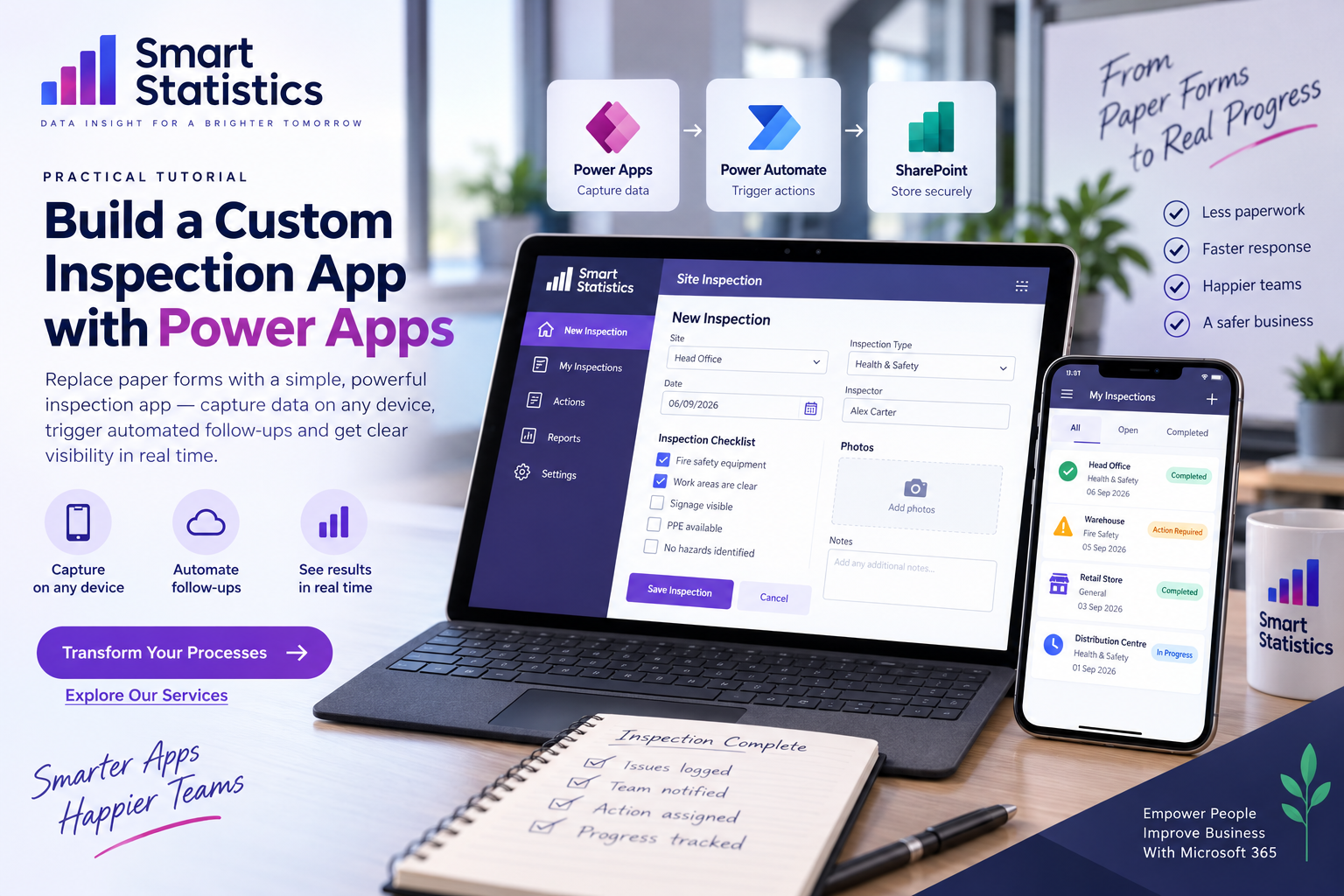
Build a Custom Inspection App with Power Apps
Paper inspection forms rarely fail because somebody cannot tick a box.
They fail because completed forms sit in folders, photographs live on somebody's phone, actions are followed up by email and managers cannot see whether the same problem is appearing across several locations.
A Power Apps inspection solution can bring those pieces together: structured checklist answers, photographs, findings, corrective actions, ownership and live reporting in one controlled process.
Latest Inspection
Corrective Actions
One illustrative inspection has generated a corrective action. The issue has been assigned to Facilities with a target completion date.
The Checklist Is Usually Only Half the Process
The real operational value begins after somebody identifies a problem. Who owns it? When is it due? Was it fixed? Is the same issue happening elsewhere?
Paper Becomes History
Once filed, a completed inspection often becomes a historical record rather than an active management tool.
Evidence Gets Separated
Photographs may live in email, Teams or somebody's camera roll instead of remaining linked to the finding.
Actions Are Informal
Corrective work may rely on emails and verbal reminders with no reliable view of overdue work.
Trends Stay Hidden
Repeated failures across locations are hard to identify when every inspection exists as a separate document.
Build a Process, Not Just a Form
A robust inspection solution separates the user interface, structured data, evidence, automation and management reporting.
Power Apps
Capture checklist answers, notes, photographs and signatures.
Structured Data
Store inspections, responses and action records separately.
Evidence
Keep photographs and supporting information with the finding.
Power Automate
Route actions, reminders and escalations automatically.
Management View
Monitor completion, actions, overdue items and recurring risks.
Create the Inspection App from the Data Model Up
Design the Inspection Data Model
Avoid creating one enormous table containing every question, answer and action.
A more flexible model might contain:
- Inspection Templates
- Inspection Questions
- Inspections
- Inspection Responses
- Corrective Actions
- Sites or Locations
A basic Inspections table could include:
InspectionID
InspectionType
Site
InspectionDate
Inspector
OverallStatus
SubmittedDate
CompletedDate
Build the Inspection Header Screen
Start the inspection by collecting the information that applies to the whole visit.
- Site
- Inspection type
- Date
- Inspector
- Department or area
For example, when the user selects Start Inspection:
Set(
    varInspection,
    Patch(
        Inspections,
        Defaults(Inspections),
        {
            Site: ddSite.Selected,
            InspectionType: ddInspectionType.Selected,
            InspectionDate: Today(),
            InspectorEmail: User().Email,
            OverallStatus: "In Progress"
        }
    )
)
Render the Checklist Dynamically
Instead of placing thirty fixed controls on the screen, store the questions in data and show them in a gallery.
Each question can contain:
- Question text
- Section
- Display order
- Mandatory flag
- Response type
- Action-trigger flag
Response options might include:
Pass
Fail
Not Applicable
Action Required
Capture Evidence at the Point of Inspection
If a user records a failure, make it easy to attach the evidence immediately.
Depending on the solution, that might include:
- Photographs
- Comments
- Location details
- Asset reference
- Severity
Turn Failed Questions into Corrective Actions
A failed inspection question should not disappear inside a submitted form.
Create a separate corrective-action record containing:
- Inspection ID
- Question or finding
- Action description
- Assigned owner
- Priority
- Due date
- Status
- Closure evidence
Conceptually:
If(
    varResponse = "Fail",

    Patch(
        CorrectiveActions,
        Defaults(CorrectiveActions),
        {
            InspectionID: varInspection.ID,
            QuestionID: ThisItem.QuestionID,
            ActionStatus: "Open",
            OwnerEmail: varActionOwner,
            DueDate: DateAdd(
                Today(),
                7,
                TimeUnit.Days
            )
        }
    )
)
Automate the Follow-Up
Power Automate can turn an open action into a controlled workflow.
A flow could:
- Notify the action owner
- Send the inspection evidence
- Create a Planner task
- Post a Teams notification
- Send a reminder before the due date
- Escalate overdue actions
A simple workflow might be:
Inspection Submitted

→ Find Failed Responses

→ Create Corrective Actions

→ Notify Action Owners

→ Wait Until Reminder Date

→ Check Status

→ Escalate If Still Open
The Best Inspection App Manages What Happens Afterwards
A successful implementation makes ownership, due dates and closure evidence part of the inspection process itself.
Capture the Finding
Record exactly what failed, where it happened and the evidence supporting the inspection result.
Assign Ownership
Make one named person or team responsible for progressing the corrective work.
Track the Due Date
Make upcoming and overdue actions visible instead of relying on somebody's inbox.
Evidence the Closure
Capture completion comments, photographs and closure dates so the corrective action has a clear end state.
Stop Reporting Only “Inspections Completed”
Completion rate matters, but management reporting becomes much more useful when it also shows the quality of the findings and whether corrective work is being closed.
Inspection Completion
See which planned inspections were completed, missed or remain outstanding.
Findings by Severity
Distinguish routine observations from findings requiring urgent operational attention.
Overdue Actions
Show unresolved corrective actions by site, owner and number of days overdue.
Repeat Failures
Highlight questions, sites or asset groups generating the same findings repeatedly.
Power Apps Inspection FAQs
Can Power Apps replace paper inspection forms?
Can inspectors take photographs inside the app?
Can Power Automate notify people when an inspection fails?
Should inspection data be stored in SharePoint or Dataverse?
Can the checklist change by inspection type?
Can corrective actions have different priorities?
Can Power BI report on inspection results?
How can Smart Statistics help?
Do Not Just Digitise the Checklist. Digitise What Happens Next.
Smart Statistics helps UK businesses replace paper forms, disconnected spreadsheets and informal follow-up with structured Power Apps and Power Automate solutions.
The result is not merely a nicer form. It is a business process where findings have evidence, actions have owners, deadlines are visible and management can see what still needs attention.