

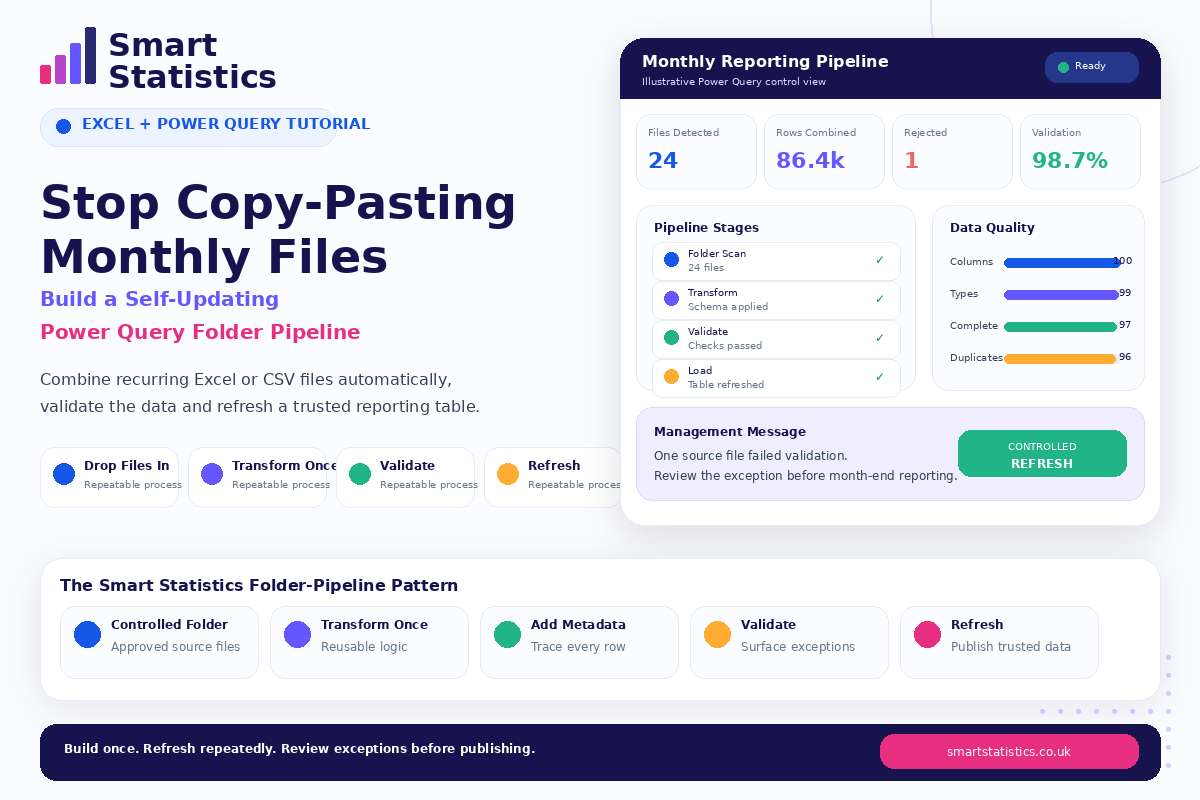
Stop Copy-Pasting Monthly Files: Build a Self-Updating Folder Pipeline
If your monthly reporting process starts with opening files, copying rows, fixing headers and checking whether anything was missed, Excel is doing too little of the work.
Power Query can turn a folder of recurring files into a controlled data pipeline. New files arrive, the same transformation logic is applied, validation runs and the reporting table refreshes.
The important part is not simply combining files. It is building enough control around the process that one badly formatted workbook cannot quietly distort management reporting.
Pipeline Stages
Data Quality Signals
One source file failed validation and should be reviewed before the reporting pack is published.
Copy-Paste Works — Until the Process Scales
Manual consolidation is often manageable when there are only a few files. The risk increases when the same process must be repeated every week or month across multiple contributors.
Missed Rows
A copied range may not extend far enough, a filter may remain active or an entire worksheet may be missed.
Changed Headers
One colleague renames a column and the recurring process suddenly requires manual intervention.
Duplicate Files
Final.xlsx, Final-v2.xlsx and Final-FINAL.xlsx can all find their way into the same monthly reporting process.
Invisible Exceptions
A report can still appear complete even though a source file contains missing values or an unexpected structure.
Build Once. Refresh Repeatedly.
Separate the incoming files from the transformation logic so every new reporting period follows the same controlled path.
Controlled Folder
Approved source files enter one defined location.
Transform Once
Reusable transformation logic standardises every file.
Combine
Matching source records become one reporting table.
Validate
Quality checks identify records requiring attention.
Refresh
Trusted data feeds the reporting output.
Build the Pipeline Properly
Create a Controlled Source Folder
Start with the process before starting with Power Query. Create one location for the recurring source files and define what is allowed to enter it.
- Use a consistent file type where practical.
- Keep archive copies outside the live folder.
- Exclude temporary and backup files.
- Agree a consistent filename convention.
Sales_2026-01.xlsx
Sales_2026-02.xlsx
Sales_2026-03.xlsx
Connect Excel to the Folder
In Excel, open Data → Get Data → From File → From Folder.
Select the controlled folder and choose Transform Data so you can inspect the file list before combining anything.
- Review filename.
- Review file extension.
- Review modification date.
- Review folder path.
Build the Sample-File Transformation
Power Query can create helper logic based on a sample file. Treat this as the reusable transformation template.
- Select the correct table or worksheet.
- Promote headers deliberately.
- Remove unnecessary columns.
- Standardise column names.
- Set data types explicitly.
- Remove obvious blank rows.
Date
CustomerID
Product
Quantity
NetSales
Region
Keep Source Metadata
Do not remove the source filename too early. It is one of the simplest ways to preserve traceability.
- Source filename
- Folder path
- File modified date
- Reporting period
For example, a file named:
Sales_2026-08.xlsx
can provide a derived reporting period:
2026-08
Add Validation Before Reporting
A useful pipeline should expose whether incoming data is fit for reporting rather than merely appending it.
- Check required columns.
- Check mandatory identifiers.
- Check date conversion.
- Check numeric fields.
- Check duplicate business keys.
- Check expected reporting periods.
An illustrative Power Query custom column could be:
if [CustomerID] = null then
    "Missing Customer ID"
else if [NetSales] = null then
    "Missing Sales Value"
else
    "Valid"
Load, Review and Refresh
Once the clean query is ready, load it into an Excel table, PivotTable model or appropriate downstream reporting layer.
Your recurring process can then become:
- Save approved files into the controlled folder.
- Refresh the workbook.
- Review the exception query.
- Resolve material data issues.
- Refresh again where necessary.
- Publish the reporting output.
Automation Should Make Reporting More Controlled
Faster refreshes are useful. Ownership, transparency and exception management are what make the process dependable.
Named Owner
Someone should own the process, source expectations and decisions about unresolved exceptions.
Documented Schema
Define expected columns, data types and mandatory fields rather than relying on informal knowledge.
Exception Review
Failed records should appear in a visible review process rather than silently disappearing.
Refresh Evidence
Keep visibility of when the process refreshed and what exceptions remained before publication.
Excel Power Query FAQs
Can Power Query combine new files automatically?
Do all files need the same structure?
Can the process combine CSV files?
Should invalid records be deleted automatically?
Can the resulting data feed Power BI?
What happens if somebody changes a column header?
Is Power Query better than VBA?
How can Smart Statistics help?
If You Repeat the Same Copy-Paste Process Every Month, It Is Probably Ready to Be Automated.
Smart Statistics helps UK businesses replace fragile spreadsheet routines with controlled Power Query, Power BI, automation and reporting solutions.
The aim is not to eliminate Excel. It is to make Excel handle repetitive work consistently so your team can spend more time reviewing the result and less time assembling it.