

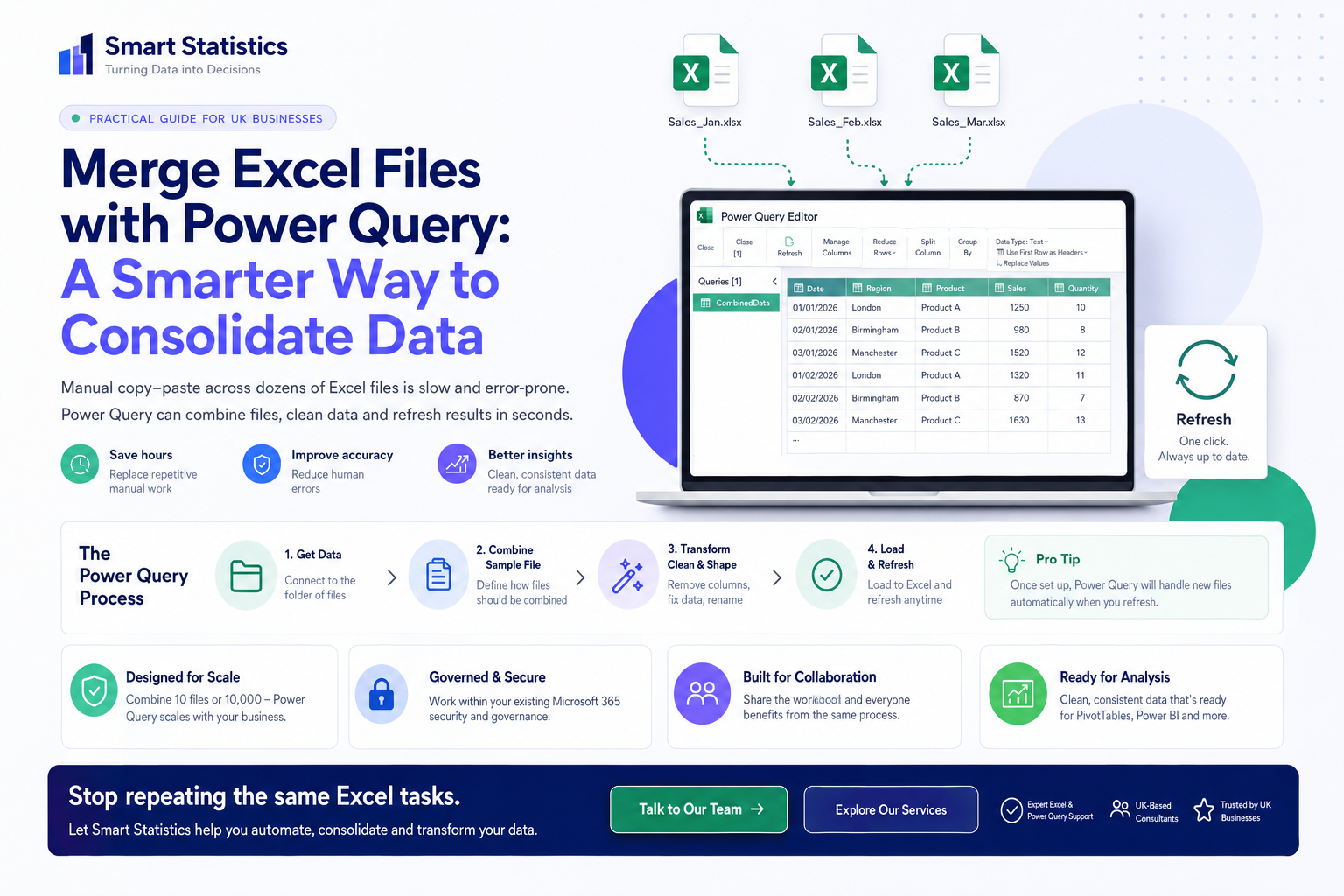
Merge Excel Files with Power Query: A Smarter Way to Consolidate Monthly Data
Monthly reporting often starts with a simple routine: open several workbooks, copy each set of rows into a master file, fix the formatting, remove duplicates and hope nothing was missed.
Power Query replaces that repeated copy-and-paste with a defined process. You connect once to a folder, tell Excel how one representative file should be transformed, and then apply that logic across the rest of the files.
Turn a Repetitive Spreadsheet Task into a Defined Data Process
The biggest improvement is not simply speed. It is the move from an informal routine that depends on somebody remembering each step to a documented transformation that can be refreshed consistently.
Reduce Repetitive Effort
Remove the monthly sequence of opening, copying, pasting and reformatting each file.
- Fewer manual workbook steps
- One refreshable query
- Less time spent rebuilding the same output
Improve Consistency
Apply the same column names, data types and cleaning rules to every compatible file.
- Repeatable transformations
- Clear data-type rules
- Visible query steps
Scale the Reporting Process
A well-designed folder query can accommodate a growing series of monthly files without creating a new manual step each month.
- More periods without more copy-and-paste
- Reusable source structure
- Supports downstream PivotTables and analysis
Make the Logic Auditable
Applied Steps provides a visible sequence showing how raw files are transformed into the final dataset.
- Transformation history
- Clear source path
- Easier troubleshooting
Folder Consolidation Works Best When the Files are Structurally Compatible
Power Query can process each file through the same transformation. That is powerful, but it also means the source files need a predictable structure.
Strong fit
Use this pattern when recurring files represent the same type of business data.
- Monthly sales exports with the same columns
- Department budget files built from one template
- Weekly operational extracts with a consistent table name
- CSV or Excel files stored in a controlled folder structure
Needs more design
Additional logic may be required when the source structure varies significantly.
- Different column names between periods
- Several unrelated file types in the same folder
- Header rows moving between workbooks
- Different worksheet or table names with no consistent rule
Connect, Combine, Transform and Refresh
The folder connector turns a collection of files into a table of file metadata and binary content. Power Query then applies the sample transformation across the selected files and expands the results.
1. Connect
Select the folder that contains the source files.
2. Combine
Choose the sample file and the object to extract.
3. Transform
Clean names, types, rows and other business rules once.
4. Refresh
Add compatible files and refresh the same query next period.
Merge Monthly Excel Files from Start to Finish
The example assumes each workbook contains the same type of records and uses a consistent Excel table or worksheet structure.
Standardise the source files
Before building the query, make the recurring workbook structure as predictable as possible.
- Use the same core column names
- Keep one row of headers
- Prefer a named Excel table for the source data
- Avoid totals and commentary inside the data table
tblData in each workbook. This gives Power Query a stable object to extract from every file.
Place the files in a controlled folder
Put the files that belong to the consolidation into one controlled folder or a clearly defined folder structure.
- Keep unrelated files elsewhere
- Use a naming convention that makes the reporting period obvious
- Avoid saving temporary working copies in the source folder
- Decide who owns the folder
Connect Excel to the folder
In Excel, go to Data → Get Data → From File → From Folder, select the source folder and confirm the file list.
If the folder contains only the required files and they are already well controlled, you can use Combine & Transform Data. If you need to exclude files first, choose Transform Data so you can filter the file list before combining.
Filter out files that do not belong
Before combining, remove anything that should not be treated as a source file.
- Filter the Extension column to the expected file types
- Exclude Excel temporary files beginning with
~$ - Filter Folder Path where required
- Exclude archive, backup or template files
Choose a representative sample file
Use Combine Files. Power Query analyses a sample file and uses it to build the transformation that will be applied across the other selected files.
- Choose a normal, representative file
- Select the required table or worksheet
- Avoid using an unusual exception file as the sample
- Review the preview before confirming
Clean the generated sample transformation
Power Query creates helper queries that describe how one file should be interpreted. Make the cleaning rules deliberate and business-friendly.
- Rename columns clearly
- Set appropriate data types
- Remove blank rows and unnecessary fields
- Standardise text where the business rule requires it
- Keep the source filename if it is useful for audit and troubleshooting
Load the result to the right destination
Once the combined query is validated, load it according to how the business will use the result.
- Excel table for direct review
- PivotTable for summarised reporting
- Data Model for larger analytical models
- Connection only when the query feeds another query
Test the next-period refresh
Copy a new compatible file into the folder and refresh the workbook. Confirm that the new rows appear once and that the totals reconcile to the source.
- Check record counts
- Check headline totals
- Check the source-file field if retained
- Confirm there are no duplicated periods
A Complete M Query for a Controlled Folder Pattern
The query below is a complete example that combines Excel workbooks containing a table called tblData. Change only the two values in the settings section to match your environment.
Complete copy-and-paste query
let
    // ============================================================
    // SETTINGS - UPDATE THESE TWO VALUES
    // ============================================================
    FolderPath = "C:\\Data\\Monthly Sales",
    SourceTableName = "tblData",

    // ============================================================
    // GET FILES
    // ============================================================
    Source = Folder.Files(FolderPath),

    // Keep Excel workbooks only and remove temporary Excel files
    FilterFiles =
        Table.SelectRows(
            Source,
            each
                List.Contains(
                    {".xlsx", ".xlsm"},
                    Text.Lower([Extension])
                )
                and not Text.StartsWith([Name], "~$")
        ),

    // ============================================================
    // OPEN EACH WORKBOOK
    // ============================================================
    AddWorkbookObjects =
        Table.AddColumn(
            FilterFiles,
            "WorkbookObjects",
            each Excel.Workbook([Content], false, true)
        ),

    ExpandWorkbookObjects =
        Table.ExpandTableColumn(
            AddWorkbookObjects,
            "WorkbookObjects",
            {"Name", "Data", "Kind", "Hidden"},
            {"ObjectName", "Data", "Kind", "Hidden"}
        ),

    // Keep the expected Excel table only
    KeepSourceTable =
        Table.SelectRows(
            ExpandWorkbookObjects,
            each
                [Kind] = "Table"
                and [ObjectName] = SourceTableName
                and [Hidden] <> true
        ),

    // ============================================================
    // EXPAND THE BUSINESS DATA
    // Update the column list below if your source structure differs
    // ============================================================
    ExpandData =
        Table.ExpandTableColumn(
            KeepSourceTable,
            "Data",
            {"Date", "Region", "Product", "Sales", "Quantity"},
            {"Date", "Region", "Product", "Sales", "Quantity"}
        ),

    // Apply explicit data types
    ChangeTypes =
        Table.TransformColumnTypes(
            ExpandData,
            {
                {"Date", type date},
                {"Region", type text},
                {"Product", type text},
                {"Sales", Currency.Type},
                {"Quantity", Int64.Type}
            }
        ),

    // Keep the source file name for traceability
    AddSourceFile =
        Table.AddColumn(
            ChangeTypes,
            "Source File",
            each [Name],
            type text
        ),

    // Keep only the final reporting columns
    SelectFinalColumns =
        Table.SelectColumns(
            AddSourceFile,
            {
                "Date",
                "Region",
                "Product",
                "Sales",
                "Quantity",
                "Source File"
            }
        )
in
    SelectFinalColumns
Keep the Automation Reliable
Power Query can automate the mechanical work, but the business still needs rules around file structure, ownership and exceptions.
Folder Ownership
Define who can add, replace or remove source files so accidental files do not silently enter the consolidation.
Template Control
Keep the source template stable and document any planned changes to headers, tables or column definitions.
Validation
Reconcile record counts and important totals after design changes or when a new source format is introduced.
Process Ownership
Make it clear who owns the workbook, who fixes failed refreshes and who approves changes to the source structure.
Small Monthly Tasks Can Become Large Annual Effort
The figures below are illustrative planning examples only. Actual savings depend on the number of files, current manual effort, file quality and how often the process runs.
Repeated Each Year
A monthly consolidation becomes twelve manual reporting cycles.
Illustrative Monthly Task
Example effort for copying, checking and reformatting several files.
Illustrative Annual Effort
Thirty minutes per month across twelve cycles, before rework or errors.
Refreshable Process
A design objective: one controlled transformation instead of repeated manual consolidation.
Excel Power Query File Consolidation FAQs
Can Power Query combine several Excel files automatically?
Do all files need the same number of rows?
What happens when I add next month's file?
Why should I filter the folder before combining?
Should I combine worksheets or Excel tables?
Can this feed a PivotTable?
Can I use files stored in SharePoint instead?
How can Smart Statistics help?
Technical references
This tutorial is aligned with current Microsoft guidance for combining files and using the Power Query Folder connector. Always validate the behaviour against your own Excel version, data source and organisation's security requirements before production use.
Still Copying the Same Monthly Files by Hand?
Smart Statistics helps UK businesses replace repetitive spreadsheet routines with reliable Excel, Power Query, Power BI and Power Platform solutions.
Whether you need to consolidate files, automate reporting, improve an existing workbook or move a fragile manual process into a controlled solution, we can help.