
Smart Statistics · Power Automate tutorial
Power Automate Daily Digest: Send One Email for Open Actions
An operations team needs a morning view of outstanding work. Sending an email for every list item turns that simple requirement into inbox noise. A daily digest collects the open actions into one readable table and stays quiet when there is nothing to report.
This tutorial uses a small SharePoint list, a scheduled cloud flow and Office 365 Outlook. It sends to one approved team address, not separately to each action owner. It reports all open actions; it does not calculate which actions are overdue.
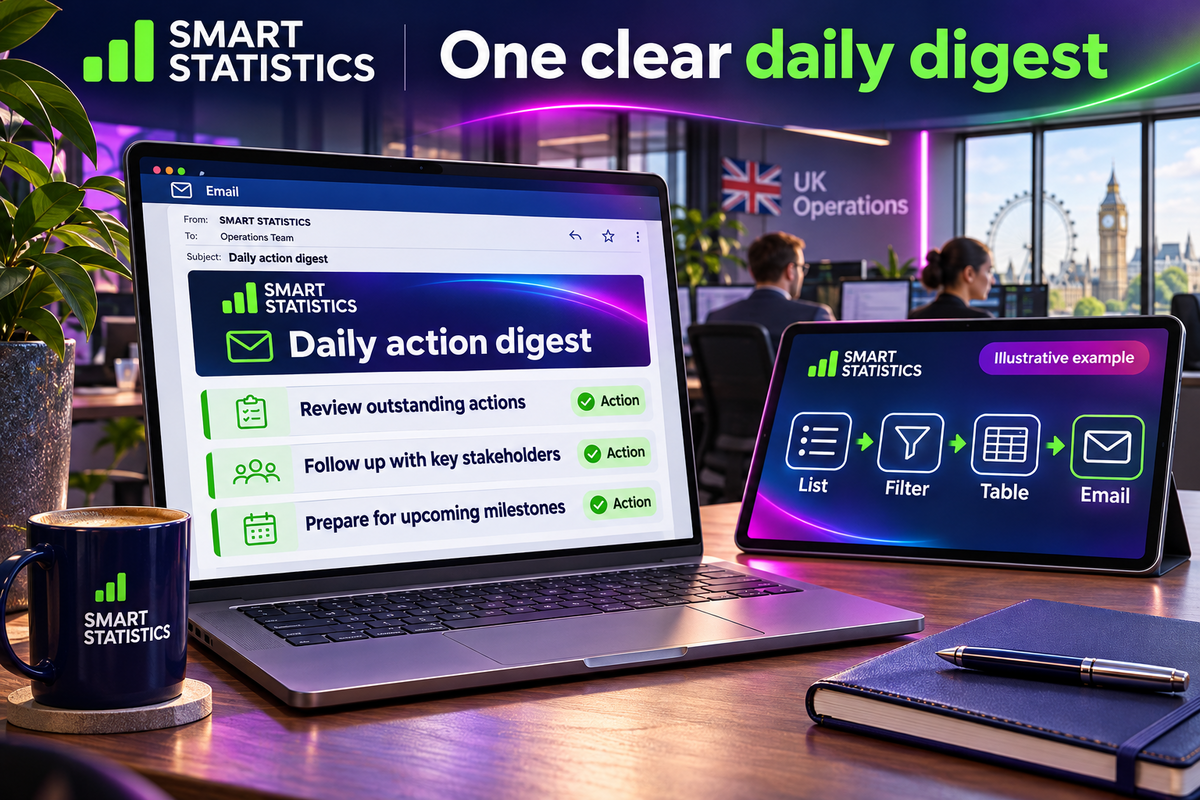
Illustrative example · Morning action review
One summary from the current open-action list
SharePoint action list → count checks → HTML table → Outlook digest. Closed records stay in the source and are excluded from the email.
Set the boundary before building
Use a test list with fewer than 5,000 total items. This example allows at most 200 open rows in an email. That is a deliberately conservative tutorial policy, not a Microsoft limit. For a larger register, design and test an indexed retrieval strategy and a shorter summary linked to the source.
You need permission to create and read the list, create a scheduled cloud flow and use an authorised Outlook connection. Ask your Microsoft 365 administrator to confirm your entitlement and connector policies; this article does not assume that every subscription permits the same setup.
A stable source
Use one list as the register. Update actions there after the meeting; replying to the digest does not update an item.
A defined audience
Choose a team address whose members may see every included record. A shared digest is unsuitable when different recipients require different row-level access.
A clear stopping rule
Stop rather than email a misleading partial summary or an unreadably large table. Make failures visible to an owner.
Create the action register
Create a blank SharePoint list named Team Actions. Keep the built-in Title field. Create the following columns using these exact names initially, so their internal names match the expressions below.
| Column | Type | Setup |
|---|---|---|
| Title | Single line of text | Required; short action description. |
| ActionStatus | Choice, single selection | Open and Closed; required; default Open. |
| ActionOwner | Single line of text | Required; a team or owner label, not the email recipient. |
Add three Open actions and two Closed actions using invented test details. For example: “Confirm delivery slot” / Operations, “Review stock variance” / Warehouse and “Agree service update” / Customer team. Add an index on ActionStatus in List settings → Indexed columns. Keep sensitive notes out of titles.
Why text for the owner? It keeps the first build focused on digest assembly. A Person column has a different output structure. If you adopt one later, update and test the mapping instead of assuming the text expression still applies.
Build the flow from retrieval to delivery
Rename actions exactly as shown before adding expressions. Paste expressions through the Expression editor without a leading @. The filter query is plain OData text, not an expression.
Schedule the morning run
In Power Automate, create a Scheduled cloud flow. Set Recurrence to every 1 day, select the London time zone, and configure hour 8 and minute 0. The underlying Windows time-zone identifier is GMT Standard Time. Inspect the next scheduled run after saving. The daily schedule includes weekends; change the recurrence if the team needs weekdays only. [1]
Retrieve only open actions
Add SharePoint Get items, rename it Get_open_actions, and select the test site and Team Actions list. Set these options:
Filter Query: ActionStatus eq 'Open'
Order By: ID asc
Top Count: leave blank
Settings → Pagination: On
Pagination threshold: 5000
Default retrieval can return only 100 items, so do not rely on a small test to prove completeness. Pagination is not a cure for every SharePoint threshold issue. This tutorial deliberately limits the total list size and tests above the default page size. [2]
Count the array and check the ceiling
Add a Compose action named Open_count with this expression:
length(body('Get_open_actions')?['value'])Add a Condition: Outputs from Open_count is greater than 200. In its Yes branch, add Terminate with status Failed, code DigestVolumeExceeded and message “Open-action count exceeds the digest policy; review the source.” Do not send the normal digest in this branch.
In the No branch, add another Condition: Outputs from Open_count is greater than 0. Leave this second condition’s No branch empty. Build the table and email only in its Yes branch. The 200-row check also blocks a result that reaches the configured 5,000-row retrieval ceiling, but does not replace source reconciliation.
Create one HTML table
Add Data Operations → Create HTML table, named Create_digest_table. For From, use:
body('Get_open_actions')?['value']Set Columns to Custom and add the following mappings. Enter each value through the Expression editor; item() refers to the current row being formatted by the table action.
| Header | Value expression |
|---|---|
| ID | item()?['ID'] |
| Action | item()?['Title'] |
| Owner | coalesce(item()?['ActionOwner'], 'Unassigned') |
Create HTML table converts the array into one table. You do not need an Apply to each around the email. Keep the headers so readers can interpret the columns. [3]
Send one summary
Add Office 365 Outlook → Send an email (V2) directly after the table, inside the non-empty branch. During testing, set To to your own authorised test address. Use this expression for Subject:
concat('Daily action digest | Open actions: ', string(outputs('Open_count')))Use this expression for Body. The V2 action accepts an HTML body; do not paste the table output as an attachment.
concat(
  '<p>Please review the open actions below. Update the Team Actions list after the review.</p>',
  body('Create_digest_table'),
  '<p>This is a snapshot from this run. Check the source list for the latest status.</p>'
)
Add a link to the actual Team Actions list in the email editor if useful. Use the real list URL, not a guessed address. The flow must contain a single email action in this branch. If the designer adds Apply to each after you select a token, check that you used the whole table output rather than a field from Get items.
Prove the branches before switching recipients
| Test | Expected result |
|---|---|
| Three Open, two Closed | One email with three table rows; closed IDs absent. |
| All records Closed | Successful run; no digest email. |
| 101 Open records | 101 rows retrieved and included; verify IDs against the list. |
| 200 then 201 Open records | 200 may send; 201 fails the volume check and sends no normal digest. |
| Title containing & or < characters | Readable literal text in the received email; no broken table. Inspect the actual output before release. |
| Unavailable connection or list | Retrieval fails visibly; no misleading “nothing open” message. |
Use disposable test data for volume checks. Compare the returned ID set with an independently checked list view, not just the email’s row count. Reopen an item and confirm it appears on the next run. Close one and confirm it disappears.
The email is a snapshot, not a live view or a transactional guarantee. Edits can occur during retrieval or after sending. A successful send action also does not prove that every intended person read the message.
Make the digest useful after launch
Own the register
The operations owner defines Open and Closed and ensures actions are updated. The digest cannot fix a register that nobody maintains.
Own delivery
Name a flow owner and backup. Configure and test failure notification or an equivalent monitored support route, including the deliberate volume failure. Silence must not be the only health indicator.
Control distribution
Review the team mailbox membership before release. SharePoint permissions do not retract content already copied into email. Include only the fields the whole audience needs.
Measure usefulness
Track successful scheduled runs, failed runs, open-action count and time spent preparing the review. Ask whether the digest prompts updates. Do not claim time savings until a comparable before-and-after review supports them.
A repeated daily reminder is intentional while an action stays open. Duplicate delivery within a day is different: retries, resubmission and duplicate flows can produce it. Check run history before retrying a send that may already have succeeded. This basic tutorial does not guarantee exactly-once delivery.
Release checklist
This assessment runs locally, sends nothing and stores no answers. Tick only checks you have demonstrated in your environment.
Frequently asked questions
Why does my flow send one email per action?
The email action is probably inside an Apply to each loop. Build the HTML table from the whole result array, then place one email action after the table in the non-empty branch.
Does an empty digest mean the flow failed?
No. A successful query with zero open actions should finish without an email in this design. A failed query is different and must be visible to the flow owner.
Does the digest grant access to the SharePoint list?
No. Email recipients need their own list permissions to open the source. Email also copies the included information outside the list, so recipients must be approved for every row in the digest.
Will this guarantee exactly one delivery each day?
No. The design has one send action per qualifying run, but retries, manual resubmission or duplicate flows can still create duplicate deliveries. Stronger delivery guarantees need additional controls.
Turn routine updates into useful automation
Smart Statistics can help build practical Microsoft 365 workflows, test their exceptions and connect operational actions to clear reporting.