

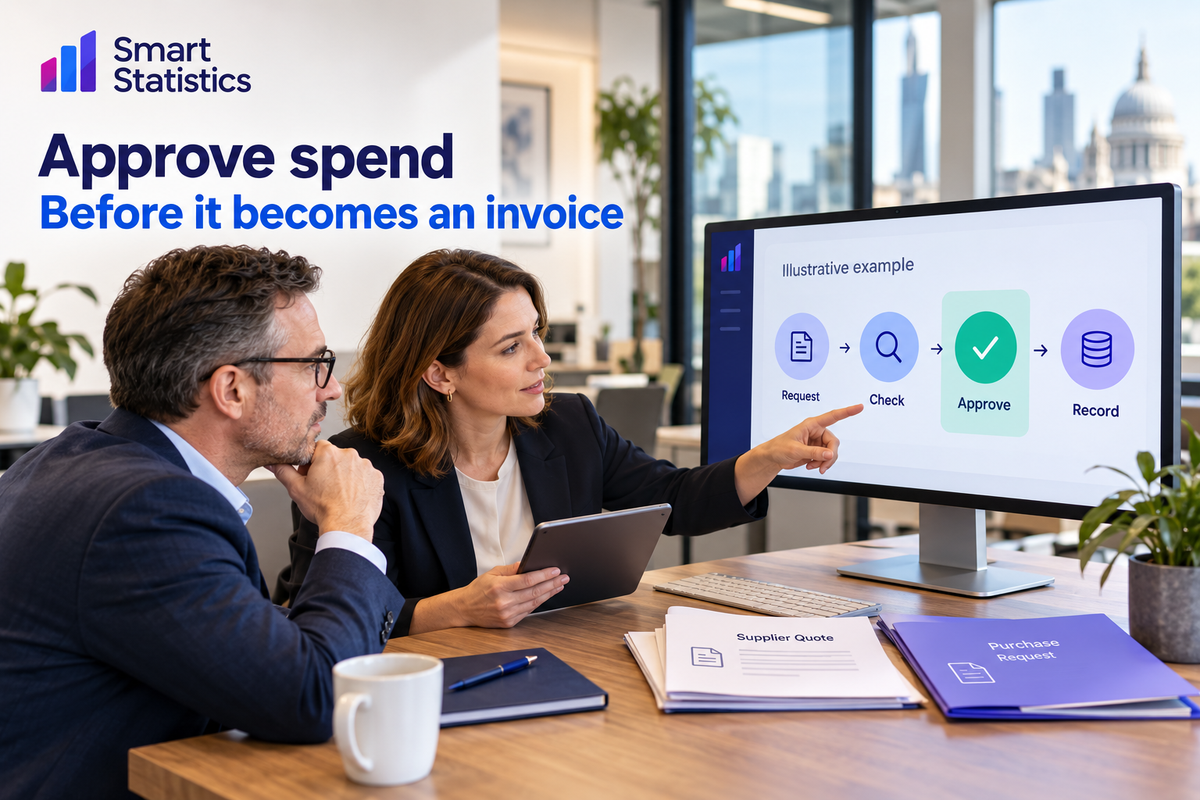
Approve spend before it becomes an invoice
A purchase approval should answer three questions before anyone commits the business: what is being bought, who owns the budget and who authorised the decision?
Build a controlled Microsoft Lists and Power Automate workflow that routes each request, records the response and keeps exceptions visible.
6 October 2026 · For UK finance, procurement and operations teams
Requests awaiting a decision
Routes active · Illustrative example
Illustrative example: recorded outcomes
The invoice is too late for the first conversation
A supplier invoice lands in accounts payable. The work has already started, the budget owner was not consulted and the email that looked like approval is buried in somebody’s inbox. Finance can question the invoice, but the commercial commitment may already exist.
The better control point is the request. Capture the supplier, amount, reason and required date before the order is placed. Route the evidence to the right person and retain the decision beside the request.
The goal is not to add a digital queue. It is to make the approved route easier than the workaround.
This tutorial builds a focused first version. It records internal approval only. Purchase orders, supplier onboarding, budget reservation, invoice matching and payment remain separate processes unless you deliberately connect them.
What good looks like before you build
A useful workflow makes policy executable without hiding uncertainty.
Complete evidence
The request contains a business reason, amount excluding VAT, cost centre, required date and a link to the relevant quote. Missing information becomes an exception, not an empty field passed to an approver.
Controlled routing
Approvers come from a maintained route table. The requester cannot choose a convenient colleague, and a missing or duplicate route stops visibly instead of falling back to the wrong person.
Recorded outcomes
Approved, rejected and failed requests remain distinguishable. The record retains the responder, decision time and comments so teams do not reconstruct events from forwarded emails.
Build the controlled request process
Create column names without spaces where shown so the expressions use predictable internal names. Replace the example site and list URLs with your own.
Agree the boundary and decision rules
Use this pilot rule: requests below £5,000 use the standard route; requests of £5,000 or more use the high-value route. The threshold is an illustrative design choice, not purchasing advice. Finance or procurement must approve the real policy, including VAT treatment, emergency spend, delegated limits and when several approvers are required.
Use stable cost-centre codes such as OPS, FIN, HR and SALES. The route key will combine the code and tier—for example OPS_STANDARD or OPS_HIGH.
Create the Purchase Requests list
Create a Microsoft List or SharePoint list named Purchase Requests. Keep attachments enabled if your policy permits them, but use a controlled document link when quotations belong in a governed library.
| Column | Type | Configuration |
|---|---|---|
| Title | Single line of text | Rename the display name to Request Title; required. |
| Supplier | Single line of text | Required; consider a governed supplier list in a later phase. |
| AmountExVAT | Currency | Required; choose the operational currency and document VAT treatment. |
| CostCentre | Choice | Required; use stable codes such as OPS, FIN, HR and SALES. |
| BusinessReason | Multiple lines of text | Required; plain text is sufficient for the pilot. |
| NeededBy | Date only | Required; do not promise this date in the approval notification. |
| QuoteLink | Hyperlink | Optional only where policy allows a request without a quotation. |
| Status | Choice | Submitted, Awaiting approval, Approved, Rejected, Routing exception, Flow error. Default Submitted. |
| RouteKey | Single line of text | Written by the flow for support and audit. |
| ApproverName | Single line of text | Written after the decision. |
| DecisionDate | Date and time | Written after the decision. |
| DecisionComments | Multiple lines of text | Written after the decision. |
| ApprovalID | Single line of text | Use the approval action’s Approval ID dynamic value when exposed. |
Create the Approval Routes list
Create a second list named Purchase Approval Routes. Use Title for the route key, add Approver as a required Person column and Active as a Yes/No column with a default of Yes.
Add one row per code and tier, such as OPS_STANDARD, OPS_HIGH, FIN_STANDARD and FIN_HIGH. In the Title column settings, enable Enforce unique values. Restrict editing of this list to the process owner and deputy.
Why a separate list? A route change should not require editing and republishing the flow. It also gives the business a visible control table to review when a manager changes role.
Validate the request and build its route key
Create an automated cloud flow with SharePoint When an item is created on Purchase Requests. This created-only trigger matters: later Update item actions will not start the same flow again. Microsoft warns that a modified trigger combined with updates to the same record can create an infinite loop.
Add a Condition and compare this expression with the Boolean true:
and(
  greater(
    float(coalesce(triggerBody()?['AmountExVAT'], 0)),
    0
  ),
  not(empty(trim(coalesce(triggerBody()?['Supplier'], '')))),
  not(empty(trim(coalesce(triggerBody()?['BusinessReason'], '')))),
  not(empty(triggerBody()?['CostCentre']?['Value']))
)
On No, update Status to Flow error, tell the requester which required data is missing and terminate with Failed. On Yes, add a Compose action named RouteKey:
concat(
  triggerBody()?['CostCentre']?['Value'],
  if(
    greaterOrEquals(
      float(triggerBody()?['AmountExVAT']),
      5000
    ),
    '_HIGH',
    '_STANDARD'
  )
)
Update the request’s RouteKey with the Compose output. If your internal column names differ, insert the fields from Dynamic content and inspect a test run before copying expressions into production.
Find exactly one active approver
Add SharePoint Get items, name it Get_approval_route, target Purchase Approval Routes and set Top Count to 2. Use this expression in Filter Query:
concat(
  'Title eq ''',
  outputs('RouteKey'),
  ''' and Active eq 1'
)
Check that the result contains exactly one row:
equals(
  length(body('Get_approval_route')?['value']),
  1
)
If the condition is false, update Status to Routing exception, notify the process owner and terminate with Failed. Do not silently use a default approver. That would turn a configuration error into an unauthorised route.
The single approver email can be read with:
first(
  body('Get_approval_route')?['value']
)?['Approver']?['Email']Send a decision-ready approval
Add a Scope named TryApproval. Inside it, update Status to Awaiting approval, then add Approvals Start and wait for an approval and name it Request_approval.
- Approval type: Approve/Reject – First to respond.
- Assigned to: the approver email returned by the route lookup.
- Title: Purchase request [ID] · [Supplier] · [Amount excluding VAT].
- Details: include the requester, cost centre, business reason, required date and quotation link. Microsoft documents Markdown support for approval details.
- Item link: link to the SharePoint display form so the approver can inspect the authoritative record.
Use this pattern for the item URL, replacing the tenant, site and list path:
concat(
  'https://TENANT.sharepoint.com/sites/SITE/Lists/PurchaseRequests/DispForm.aspx?ID=',
  string(triggerBody()?['ID'])
)
Format the amount for display with:
formatNumber(
  float(triggerBody()?['AmountExVAT']),
  'N2',
  'en-GB'
)
Approval is not commitment authority by itself. The workflow must reflect the organisation’s delegated authority, procurement policy and supplier process. An Approved status does not create a purchase order or confirm an order to the supplier.
Write back the decision and comments
After Request_approval, add a Condition:
equals(
  outputs('Request_approval')?['body/outcome'],
  'Approve'
)
In the Yes branch, update Status to Approved. In the No branch, update it to Rejected. In both branches, write the Approval ID using the action’s Dynamic content and capture the first response:
Approver name
first(outputs('Request_approval')?['body/responses'])?['responder']?['displayName']

Decision date
first(outputs('Request_approval')?['body/responses'])?['responseDate']

Decision comments
first(outputs('Request_approval')?['body/responses'])?['comments']
Send a decision notification to the request’s Created By Email. Include the status, responder, comments and record link. Do not send the supplier an order confirmation from this pilot flow.
Make failures visible
Add a Scope named CatchApprovalFailure after TryApproval. Configure Run after so it runs only when TryApproval has failed or timed out. Update Status to Flow error, notify the flow owner with the request ID and flow-run link, then terminate with Failed.
Do not place the success and failure updates inside the same catch-all scope. A failed requester email after a valid approval should not overwrite an Approved decision with Flow error. Separate the approval outcome, record update and notification responsibilities when operational consequences differ.
For decisions that may remain open for a long period, review Microsoft’s current platform limits and documented long-running approval pattern before release. Add an escalation or expiry policy owned by the business; indefinite waiting is not a control.
Test the controls, not just the happy path
Use a non-production list and test identities with the same permissions as real requesters and approvers.
Acceptance evidence
- A valid standard request reaches the standard route.
- A request at exactly £5,000 reaches the high-value route.
- Approved and rejected responses retain responder, time and comments.
- Updates made by the flow do not trigger a second approval.
- The requester cannot edit the route table.
Failure evidence
- Zero, blank and invalid amounts fail before approval.
- A missing or inactive route becomes Routing exception.
- A removed approver or broken connection leaves Flow error visible.
- A failed notification does not change the recorded decision.
- Approved records cannot be quietly edited around the process.
Microsoft states that approval requests can be answered from email, the approvals centre or the Power Automate mobile app. Test the channels your approvers will actually use, including mobile access and links back to the source record.
Operate it as a business control
The flow is only one part of the control. Ownership, permissions and review determine whether it remains dependable.
Name the owners
Finance or procurement owns the policy, thresholds and evidence required. The process owner maintains routes and deputies. The flow owner monitors failures, connections and changes. A service desk route should exist when any owner is absent.
Protect the record
Enable version history and review list permissions. Approval does not automatically make a SharePoint item immutable. If edits after submission are allowed, define which fields may change and whether material changes require a new approval.
Design for adoption
Pilot with one cost centre. Observe how staff describe purchases, where quotes are stored and why approvers return requests. Use those findings to simplify guidance before adding more departments or approval stages.
Environment readiness: Microsoft notes that using the Approvals connector for the first time in a non-default environment can provision a database and requires an environment administrator for that initial setup. Plan the first controlled test with the platform owner rather than discovering this during launch.
Measure whether the process prevents surprises
Count outcomes and exceptions, then connect them to the way purchasing actually works.
Control measures
Track requests with a valid route, decisions with comments, routing exceptions, failed runs, changes after approval, emergency purchases and invoices received without a matching approved request.
Service measures
Track median decision time, overdue approvals, returned requests, requester support contacts and time from approval to purchase-order creation. Segment by value tier and cost centre so one high-volume team does not hide another team’s delay.
Illustrative impact example: if eight avoidable chases take 15 minutes each, that represents two hours of administrative effort. Measure the real baseline and confirm whether the new process removes the work; this is not a client result or guaranteed saving.
Is your purchase approval ready to pilot?
Tick only controls supported by current evidence. This is a readiness discussion, not an audit or certification.
Where Smart Statistics can help
Smart Statistics can help turn an informal approval chain into a controlled, usable process: clarify the business rule, design the Lists structure, build and test the Power Automate flow, and create management reporting that shows where requests wait or bypass policy.
The work should begin with one real purchasing route and end with evidence your team can operate: approved definitions, tested exceptions, named owners, support notes and a review process. Where a wider procurement or finance system is the better answer, that should be identified before unnecessary automation is built.
Frequently asked questions
Does an approved request create a purchase order?
No. This tutorial records an internal approval decision. Creating a purchase order, instructing a supplier and matching an invoice require separate authorised steps unless you deliberately integrate them.
Why not let the requester choose the approver?
A requester-selected approver can bypass delegated authority or become outdated. A maintained route table makes the decision rule visible and allows controlled changes without editing the flow.
Can several people approve the same request?
Yes. Power Automate supports first-response, everybody-must-approve, sequential and parallel patterns. Choose the pattern from the approved policy and test rejection, absence and timeout behaviour before release.
Should the flow use When an item is created or modified?
This tutorial uses When an item is created so its own updates do not trigger another approval. If a modified trigger is required later, add and test trigger conditions that prevent self-triggering and unintended resubmission.
Control the decision before the cost arrives
Bring Smart Statistics the approval chain your team currently manages through inboxes and memory. We can help shape the policy into a practical Microsoft 365 process, build the controls and give owners a clear view of what needs attention.