

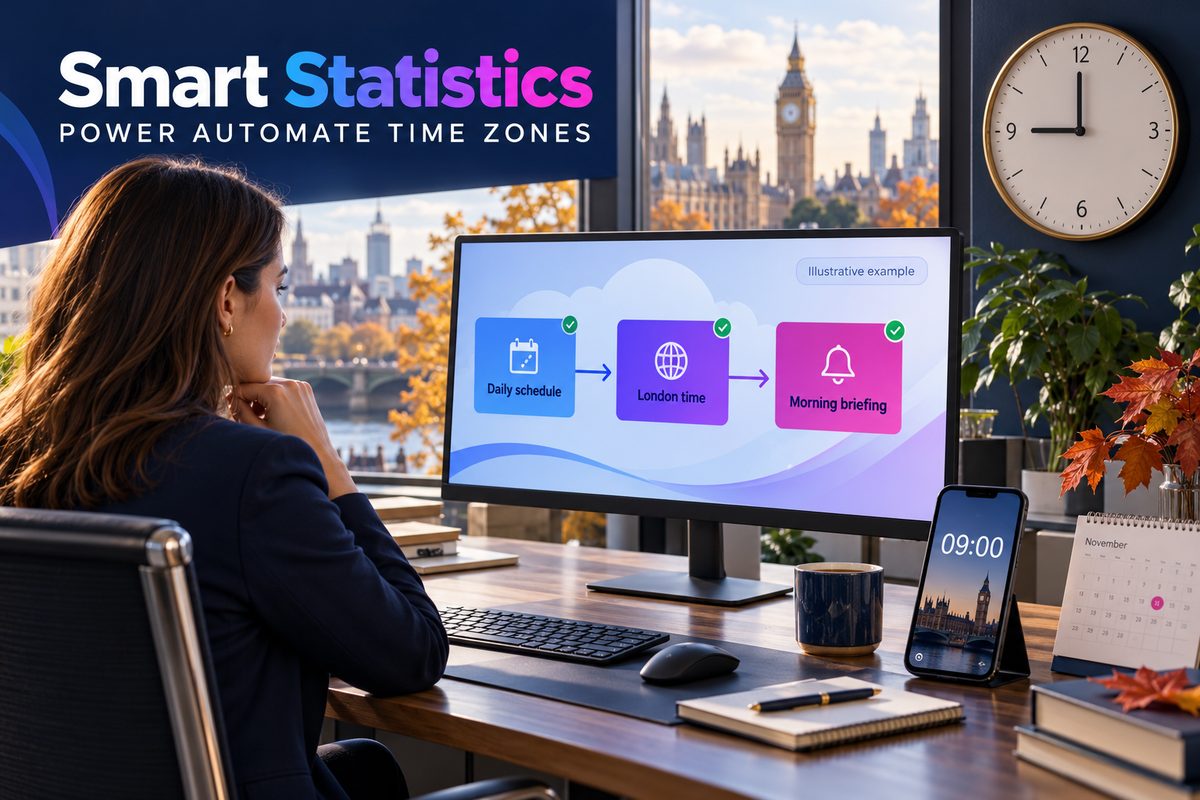
Power Automate Time Zones: Keep UK Reminders on Local Time
“Send it at nine” is incomplete until the flow knows which clock to follow. Build a UK-local daily briefing, convert UTC timestamps correctly and prove the difference between a working expression and a working schedule.
17 October 2026 · UK operations teams · Scheduled cloud flows
Illustrative example · the target stays local; its UTC equivalent changes.
-
Schedule in the business zone Use the London zone and an explicit local hour.
-
Retain the source instant Keep UTC evidence distinct from display text.
-
Verify delivery separately A correct timestamp does not prove a message arrived.
Before the next clock change
Fix the rule, not this month's offset
The UK clocks go back on Sunday 25 October 2026, according to GOV.UK. A briefing anchored to a fixed UTC hour can therefore arrive at a different UK wall-clock time after the change. Manually adding an hour is a seasonal patch, not a time-zone rule.
This tutorial uses a fictional operations briefing intended for 09:00 UK local time every day, including weekends. A weekday-only process needs an explicitly chosen weekly schedule; this example does not implement bank-holiday rules. Start with diagnostic Compose actions only, so testing cannot accidentally notify a business distribution list.
Build and inspect
Five steps from the business clock to useful evidence
Define the clock the business means
Write the requirement as “daily at 09:00 in the London time zone”, not “every 24 hours from now”. Agree who checks late or missing briefings and what delivery delay is acceptable. Scheduled execution is a target, not a guarantee that an email reaches a mailbox at that exact second.
For the expressions below, the source is a confirmed UTC timestamp
ending in Z. Do not assume every connector returns UTC.
Inspect the original output and its documentation. A date-only value,
such as a training expiry date, is not automatically a midnight
UTC event.
Test conversion without sending messages
Create an Instant cloud flow with a manual trigger.
Add a Compose action, rename it
SourceUtc and enter
2026-07-15T08:00:00Z as plain text. Add another Compose
named UkDisplay. In its
Expression editor, paste:
convertTimeZone(
  outputs('SourceUtc'),
  'UTC',
  'GMT Standard Time',
  'dd/MM/yyyy HH:mm'
)
Add UkDate as a third Compose, using this expression for an ISO-style local date:
convertTimeZone(outputs('SourceUtc'),'UTC','GMT Standard Time','yyyy-MM-dd')
Paste expressions without a leading @ or surrounding
quotes in the Expression editor. Name SourceUtc before referencing
it. Microsoft supports convertTimeZone and the built-in
Convert time zone action; GMT Standard Time is the
Windows identifier associated with London. Despite its name, it is
not simply a fixed UTC offset.
The summer fixture should return 15/07/2026 09:00 and 2026-07-15. Run all seven fixtures below by replacing SourceUtc. See Microsoft's conversion guidance and Windows time-zone identifiers .
Configure the daily recurrence
Create a separate scheduled cloud flow and open its Recurrence trigger. Set Frequency = Day, Interval = 1, select the London time-zone entry, and set At these hours = 9 and At these minutes = 0. In the classic designer these fields are under advanced options; the new designer exposes trigger parameters.
Choose a future first occurrence. Check the saved recurrence settings, including the zone and schedule, rather than relying on the creation dialogue alone. The fragment below illustrates the intended recurrence object; it is not an importable flow package. Replace the example start date with a future date when you build it.
{
  "frequency": "Day",
  "interval": 1,
  "startTime": "2026-10-19T09:00:00",
  "timeZone": "GMT Standard Time",
  "schedule": {
    "hours": [9],
    "minutes": [0]
  }
}Power Automate's scheduling guidance links to advanced recurrence documentation , which explains zone and start-time behaviour. Keep outbound actions absent while checking the first scheduled run; an unexpected diagnostic run should not send anything.
Capture one run timestamp
In the scheduled flow, add Compose RunUtc with the
expression utcNow(). Add Compose
RunUk using:
convertTimeZone(
  outputs('RunUtc'),
  'UTC',
  'GMT Standard Time',
  'dd/MM/yyyy HH:mm'
)
Keep RunUtc as the original evidence. RunUk is human-readable text and carries no UTC offset in this chosen format. If you later add a message, an example subject expression is:
concat(
  'Operations briefing — ',
  convertTimeZone(outputs('RunUtc'),'UTC','GMT Standard Time','dd/MM/yyyy')
)
Capture once and reuse it so a run crossing local midnight does not build different date labels in separate actions. RunUtc records when that Compose executes; it is not proof of the trigger's intended start or of delivery. Label the message time as UK local time, not “GMT” throughout summer.
Verify the trigger and delivery separately
First compare the conversion outputs with the fixture table. Then observe real scheduled diagnostic runs and compare their UTC run-history evidence with the intended UK time. Fixed input tests prove conversion, not recurrence. Finally, add a controlled test recipient and verify message arrival before enabling business recipients.
Record the configured schedule, actual run time, conversion output and delivery result separately. Review the first run after the October change. Agree a fallback for a missed briefing; do not assume a missed run will automatically be replayed.
Repeatable acceptance cases
Use fixed instants, not the current month
These are illustrative teaching fixtures, not observed flow runs. Expected values follow London time-zone rules for the stated dates.
| Case | SourceUtc | Expected UK display | Checks |
|---|---|---|---|
| Winter morning | 2026-01-15T09:00:00Z |
15/01/2026 09:00 | No summer offset. |
| Summer morning | 2026-07-15T08:00:00Z |
15/07/2026 09:00 | Summer rule applied. |
| Before clocks go back | 2026-10-24T08:00:00Z |
24/10/2026 09:00 | The pre-change morning. |
| After clocks go back | 2026-10-25T09:00:00Z |
25/10/2026 09:00 | Same UK target, different UTC hour. |
| Summer midnight boundary | 2026-07-15T23:30:00Z |
16/07/2026 00:30 | Local date differs from UTC date. |
| Repeated hour: first instant | 2026-10-25T00:30:00Z |
25/10/2026 01:30 | Retain original UTC. |
| Repeated hour: second instant | 2026-10-25T01:30:00Z |
25/10/2026 01:30 | Same display, different instant. |
Best practice
Remove the shortcuts that hide the real clock
Do not hard-code a seasonal hour
Adding an hour to UTC may look correct in July and wrong in January. Convert using the named zone rather than a permanent arithmetic offset.
Do not confuse formatting with conversion
A UK-looking date string can still represent UTC. Convert the instant first, then choose the display format. Never add a UTC suffix to already converted local display text.
Do not convert an instant twice
Identify whether a value is original UTC, a zoned timestamp or display-only text. Preserve that distinction across actions so a later step does not apply the summer adjustment again.
Interactive release check
Have you tested the clock and the outcome?
Tick evidence you have actually checked. This local assessment submits and stores no answers. A complete score is a review aid, not a delivery guarantee.
Ownership and business impact
Make a late briefing visible to someone
The operations lead defines the business time and acceptable delay. The flow maintainer owns the recurrence and expressions. The service owner checks connections and the agreed failure route. Train recipients to recognise the UK-local label and to report missing messages instead of assuming silence means there is nothing to do.
Measure late or missing briefings against expected occurrences, distinguish trigger delay from action or delivery delay, and record time spent on manual corrections. Those observations can demonstrate reduced chasing. They do not, on their own, prove cash savings or guaranteed delivery.
Frequently asked questions
Power Automate time-zone FAQs
Why use GMT Standard Time for a UK flow in summer?
GMT Standard Time is the Windows time-zone identifier for London. It represents the zone and its daylight-saving rules, not a fixed instruction to use UTC all year.
Does formatDateTime convert UTC into UK time?
No. Formatting changes the representation. Use a time-zone conversion with the correct source and destination zones before choosing the display format.
Does a successful manual test prove the daily schedule is correct?
No. A fixed-input test checks conversion. Inspect the saved recurrence settings and observe scheduled runs separately to verify the trigger.
Can a UK local timestamp identify every instant uniquely?
No. During the autumn clock change, a local time in the repeated hour can occur twice. Retain the original UTC timestamp when the exact instant matters.
Sources and scope
Named-zone rules, explicit test assumptions
Documentation checked on 17 October 2026. The briefing, dashboard and fixtures are illustrative teaching examples, not customer performance evidence. The expressions use documented functions; the operational checks are Smart Statistics recommendations. Verify the saved settings and actual behaviour in your environment before enabling external effects.