

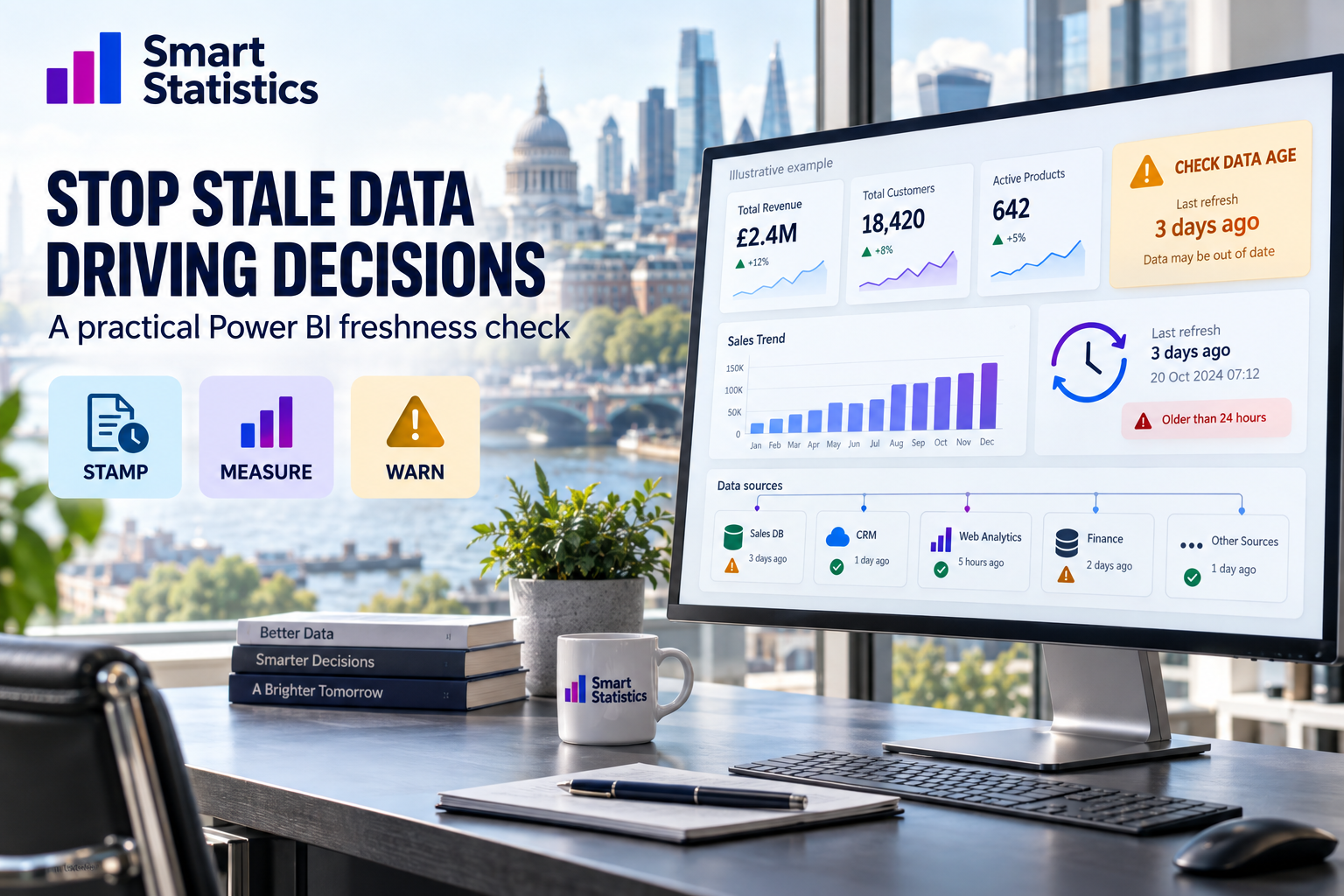
Stop stale data driving decisions
Build a visible refresh timestamp, calculate its age and warn users when a report needs checking—before yesterday’s position becomes today’s decision.
Example refresh-interval pattern, not measured business performance.
A convincing report can still contain old information
A branch manager reviews a sales report before ordering stock. The visuals load normally, but the scheduled import has not run. The numbers look plausible because there is no visible warning. A refresh-age banner gives that manager a reason to pause and contact the owner.
Refresh recency
When was the audit query last evaluated and loaded? This tutorial measures elapsed time since that event.
Source completeness
Has each required source delivered its expected batch? A recent refresh can still load an old file or incomplete extract.
Business approval
Have reconciliations and sign-offs passed? A green refresh-age label cannot approve the report for every decision.
Stamp the refresh. Measure the age. Explain the action.
The example policy below uses elapsed hours: review after 24 hours and treat the refresh as stale after 48. These are illustrative settings, not universal service levels.
Create a one-row audit query
In Power BI Desktop, open Transform data. Create a Blank Query, open Advanced Editor and replace its contents with this M code. Name the query RefreshAudit.
let
    EvaluatedAtUTC =
        DateTimeZone.RemoveZone(
            DateTimeZone.FixedUtcNow()
        ),
    Audit = #table(
        type table [RefreshEvaluatedUTC = datetime],
        {{EvaluatedAtUTC}}
    )
in
    Audit
Enable loading and inclusion in report refresh, then choose Close & Apply. Keep the table disconnected: it does not need a relationship to the Date table or business facts.
FixedUtcNow returns a fixed UTC value during evaluation. RemoveZone removes the timezone wrapper so it can be loaded as a Date/Time value. The value remains UTC; removing the wrapper does not convert it to UK local time.
Create the timestamp and age measures
Create these as measures, one at a time. The first requires exactly one audit row and ignores ordinary filters on that table. A missing timestamp or unexpected row count returns blank.
Refresh Evaluated UTC =
VAR AuditRows =
    CALCULATE(
        COUNTROWS('RefreshAudit'),
        REMOVEFILTERS('RefreshAudit')
    )
RETURN
    IF(
        AuditRows = 1,
        CALCULATE(
            MAX('RefreshAudit'[RefreshEvaluatedUTC]),
            REMOVEFILTERS('RefreshAudit')
        )
    )
Refresh Age Hours =
VAR Stamp = [Refresh Evaluated UTC]
RETURN
IF(
NOT ISBLANK(Stamp),
(UTCNOW() - Stamp) * 24
)Format the age measure to one decimal place. Keep the underlying value unrounded for threshold comparisons. A negative age remains visible to the status logic rather than being disguised as zero.
REMOVEFILTERS clears the specified filter context; it does not bypass row-level security. UTCNOW supplies a UTC comparison value. The measure is not a continuously running clock: its displayed result depends on query evaluation and caching.
Translate age into a decision message
Add these two measures. Blank and invalid values are handled before the healthy case, so missing evidence never silently becomes a green status.
Refresh Status =
VAR AgeHours = [Refresh Age Hours]
RETURN
    SWITCH(
        TRUE(),
        ISBLANK(AgeHours), "Unknown - check audit data",
        AgeHours < 0, "Invalid - check UTC timestamp",
        AgeHours > 48, "Stale - confirm before use",
        AgeHours > 24, "Ageing - review refresh",
        "Within refresh-age threshold"
    )
Refresh Banner =
VAR Stamp = [Refresh Evaluated UTC]
RETURN
[Refresh Status]
& IF(
ISBLANK(Stamp),
" | No valid audit timestamp",
" | Audit evaluated: "
& FORMAT(Stamp, "dd MMM yyyy HH:mm")
& " UTC"
)Put Refresh Banner in a prominent card near the report title and Refresh Age Hours in a nearby numeric card. Keep the warning text visible even if you also apply conditional colours. Add the reporting team’s agreed contact route alongside it.
Test the failure cases before publishing
Use a development copy of the model to test known timestamps. Restore the dynamic query afterwards. This table states the expected results for the example policy.
| Audit condition | Expected status | Owner action |
|---|---|---|
| No row, blank timestamp or multiple rows | Unknown | Repair the audit query |
| Timestamp in the future | Invalid | Check UTC handling and clock |
| Age from 0 through 24 hours | Within threshold | Apply separate source checks |
| Age above 24 through 48 hours | Ageing | Review the refresh schedule/history |
| Age above 48 hours | Stale | Confirm suitability before use |
After publishing, run the normal semantic-model refresh and check its history, the loaded audit timestamp and the report banner. Confirm that business slicers do not change the timestamp. Re-query or reopen the report when verifying age; an untouched browser tab is not an alerting system.
If your process refreshes individual tables or partitions, verify that the audit table and required business data are covered. Do not adopt this timestamp as a blanket success signal for partial processing.
Three rules for trustworthy warnings
Keep UTC explicit
Store and compare in UTC. If you display UK local time, use a deliberate GMT/BST conversion. Adding one hour permanently is wrong for part of the year.
Check upstream delivery
For each required source, record an expected batch, received batch and completeness result. A maximum transaction date alone cannot prove that every expected record arrived.
Assign a response owner
Agree who investigates, who communicates the limitation and who approves continued use. Weekend exceptions need a business calendar, not just a larger elapsed-hour limit.
Will users know when to pause?
This checklist measures implementation readiness. It is not connected to your Power BI environment.
Implementation readiness
0 of 5
Select the checks you have completed.
Power BI refresh-age FAQs
Does a recent timestamp prove the data is complete?
No. It shows when the audit query was evaluated and loaded. Source batch completeness and business reconciliation need separate checks.
Will the age update every second?
No. UTCNOW is evaluated when the measure runs, and caching can affect what users see. This report banner is not a continuously running clock or an external alert.
Should I use a calculated column for refresh age?
Use a measure for this pattern. A stored calculated column would keep its computed age until it is recalculated, making it unsuitable for a query-time comparison.
Will this work unchanged with a live connection?
No. The tutorial assumes an editable Import semantic model. A live-connected report needs the appropriate audit data and measures supplied by its underlying model.
Are 24 and 48 hours the right thresholds?
They are illustrative elapsed-hour thresholds. Agree limits with the business owner and account for reporting cadence, operating days and the decision being supported.
Does the banner stop someone using stale numbers?
No. It is a visible warning, not an access restriction. The team still needs an agreed response process and separate operational monitoring.
Give every report a clear signal about the age of its information
Smart Statistics helps UK businesses improve Power BI reporting, data checks and operational ownership. Start with one important report, make its limitations visible and agree what happens when a warning appears.
Technical references
Microsoft documentation checked on 17 September 2026. The warning policy and implementation checklist are illustrative Smart Statistics examples.