
Power BI Dynamic Row-Level Security:
Build One Report for Every Branch
Give each manager the same governed report while restricting the rows they can see. This practical pattern uses one access table, one dynamic role and a test plan that checks both permitted and denied views.
21 October 2026 · Power BI semantic models · Access control
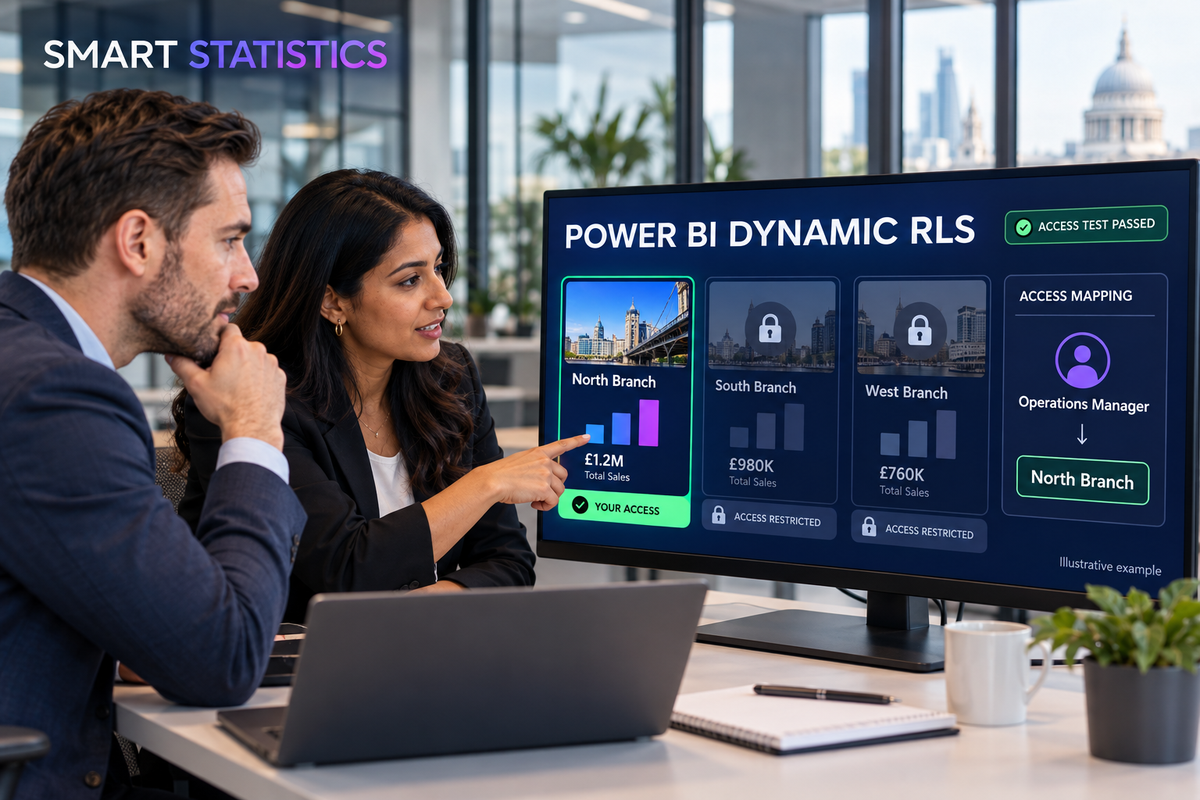
All percentages are illustrative examples. The report is intended to show only the branch keys returned by the user-access mapping.
Access path · Illustrative example
- north.manager@example.co.uk Matched
- Branch key N01 Allowed
- Sales rows for N01 Visible
The business problem
Report duplication is not an access-control strategy
A multi-branch business often starts with one Power BI file per branch. The files drift, measures change at different times and central teams cannot explain which version is authoritative. Combining the reports solves the maintenance problem—but it creates a new question: how will a branch manager see their operation without seeing everybody else’s rows?
Dynamic row-level security (RLS) answers that question inside a shared semantic model. Instead of creating a North role, a South role and a West role, the model compares the signed-in user’s principal name with an approved access table. Relationships then carry the allowed branch keys to the sales rows.
Important boundary: RLS filters rows; it does not hide model objects such as tables, columns or measures. It is one layer in the reporting permission design, not a replacement for workspace governance, sensitivity controls or source-system security. [1]
What good looks like
One explicit route from identity to business rows
For this tutorial, a fictional UK distributor has three branches. Each branch manager should see their own results; a regional manager may see two branches; an unmapped or inactive user should see no business rows.
Identity
USERPRINCIPALNAME() returns the principal name at connection time. Store the comparable value in a controlled mapping table and normalise obvious whitespace and case differences. [2]
Entitlement
Keep one row per allowed user-and-branch combination. That supports one manager with several branches without constructing more roles.
Evidence
Test expected access, denied access, multiple branches, inactive mappings and elevated workspace roles. Release only when the model and the service permissions agree.
Before you build
Define the tables and their grain
| Table | One row represents | Minimum fields | Owner |
|---|---|---|---|
UserBranchAccess |
One permitted user-and-branch combination | UserUPN, BranchKey, IsActive |
Named access approver |
DimBranch |
One governed branch | BranchKey, BranchName |
Operations or master-data owner |
FactSales |
One agreed sales transaction or line | BranchKey, date, value, order reference |
Source-system owner |
Use stable branch keys rather than display names. Decide how new users, name changes, temporary cover, transfers and leavers reach the mapping. If the spreadsheet that grants access has no approver, history or removal process, the DAX can be perfect while the control remains weak.
Hands-on tutorial
Build the dynamic branch role
The steps below assume an imported Power BI semantic model. Confirm product, connector and licensing requirements in your own environment before production use.
Agree the access rule before opening Power BI
Write the rule in plain English: “An active mapping row grants the signed-in user access to the matching branch; no active match returns no branch rows.” Name the business approver, the technical model owner and the process for removing access.
For the tutorial, use synthetic identities only. Do not place real personal or commercially sensitive data in a training file.
Load and normalise the mapping
In Power Query, load the access source and set the data types explicitly. Normalise the user principal name to reduce avoidable matching failures:
= Table.TransformColumns(
    Source,
    {
        {
            "UserUPN",
            each Text.Lower(Text.Trim(_)),
            type text
        }
    }
)
Add a validation query that flags blank UPNs, blank branch keys, duplicate user-and-branch combinations and unexpected IsActive values. Fix the source; do not silently discard uncertain entitlements.
Create a single relationship path
Create DimBranch[BranchKey] one-to-many FactSales[BranchKey]. Then relate DimBranch[BranchKey] one-to-many to UserBranchAccess[BranchKey].
Because the security filter begins on the many-side access table, configure the access-to-branch relationship so the security filter can propagate to DimBranch. In Power BI this can require Apply security filter in both directions. Use one deliberate path only, document it and test performance: Microsoft warns that bidirectional security filtering can reduce performance in complex or large models. [3]
Create one fail-closed dynamic role
Open Modelling > Manage roles, create BranchViewer, select UserBranchAccess and switch to the DAX editor. Use a Boolean rule that only retains an active row when its UPN matches the connection identity:
LOWER ( 'UserBranchAccess'[UserUPN] )
    = LOWER ( USERPRINCIPALNAME() )
    && 'UserBranchAccess'[IsActive] = TRUE()
An unknown identity has no matching access row, so the relationship path should return no branch rows. Avoid logic whose default branch returns TRUE(); Microsoft’s RLS guidance recommends testing unexpected identity values so they do not accidentally expose rows. [1]
Add diagnostic measures to the test page
Create a development-only page that shows the evaluated identity and visible branch count. These measures make failures easier to diagnose:
Who Am I =
USERPRINCIPALNAME()

Visible Branches =
DISTINCTCOUNT ( 'DimBranch'[BranchKey] )
Also add a table with branch key, branch name and a small transaction sample. Hide or remove diagnostic content that is not appropriate for the released audience; its purpose is to prove the access route.
Test both allowed and denied outcomes in Desktop
Use Modelling > View as, select BranchViewer, and test with “Other user” identities. At minimum, test a single-branch manager, a two-branch regional manager, an inactive mapping, a completely unknown UPN and a case variation.
Do not stop after the correct North result appears. Confirm that South and West rows are absent, totals reconcile to the permitted branch set and drillthrough, tooltips, exportable detail and related pages remain within scope.
Publish, map members and protect the workspace boundary
Publish the semantic model and report. In the Power BI service, open the semantic model’s security settings and add the approved users or supported group type to BranchViewer. Microsoft documents supported membership types and notes that Microsoft 365 groups are not supported for RLS role membership. [3]
Keep consumers who rely on RLS in the workspace Viewer role or deliver through an appropriately configured app. RLS does not restrict workspace Admins, Members or Contributors. Treat any request for elevated workspace access as a separate privileged-access decision. [3]
Validate in the service and retain the evidence
Use Test as role where the feature supports your scenario, then perform representative sign-in tests with actual Viewer accounts. Microsoft notes limitations for Test as role, including DirectQuery models with single sign-on, so the test method must match the architecture. [3]
Retain the model version, mapping extract or approval reference, identities tested, expected branch set, observed branch set, date, tester and result. Evidence should show that authorised users see enough—and unauthorised users see nothing.
Best practice
Design for the failure modes, not only the demonstration
Unknown user
The safe result is zero business rows. Provide a separate support message or landing page if needed; do not make the security rule return everything merely to avoid a blank report.
Overlapping roles
Role filters are additive: membership in several roles returns the union of allowed rows. Prefer one dynamic role that contains the whole entitlement unless a reviewed design needs more. [1]
Performance drift
RLS adds filters to report queries. Compare visual timings with and without View as, keep keys narrow, favour dimension filtering and active relationships, and retest as the mapping and fact table grow. [1]
Do not use “Publish to web” for restricted reporting. Keep privileged authors separate from consumers, review Build permission and downstream reuse, and involve your security or data-protection owner where the report contains personal, payroll, health or other sensitive information.
Interactive release check
Is the role ready for real branch managers?
Score each area as missing, documented or evidenced. The assessment is a planning aid, not a security certification. A weak denied-access test always blocks the release recommendation.
Governance and adoption
Keep the mapping trustworthy after launch
Ownership rhythm
The business access owner approves which branches a person may see. The identity or line-management process provides joiner, mover and leaver events. The semantic-model owner maintains the relationship and role. The workspace owner prevents casual elevation above Viewer.
Review mapping rows on a proportionate schedule and after organisational changes. Record expiry dates for temporary cover rather than relying on somebody to remember removal.
User adoption
Tell users what the report is designed to show, how to request a correction and who approves wider access. A zero-row view should have a support path, but the support experience must not reveal branch names, counts or other restricted data.
Train authors that Desktop’s unrestricted author view is not evidence of the consumer experience. Make an RLS regression test part of every release.
Measures and business impact
Track control health as well as report usage
Access quality
Monitor unmapped-user incidents, failed denied-access tests, duplicate mapping rows, inactive rows not removed and overdue access reviews. Report the denominator as well as the count.
Delivery efficiency
Track report variants retired, duplicated maintenance work removed, time to grant or remove access and release defects caused by role or relationship changes.
Performance
Compare key visual query durations with and without RLS, test representative high-entitlement users, and investigate change over time. A secure report that people cannot use will create shadow exports.
Do not invent a savings claim. Establish a baseline of report variants, support effort and access errors before implementation. Attribute improvement only where the evidence supports it.
Frequently asked questions
Power BI dynamic RLS FAQs
Does Power BI RLS hide tables, columns or measures?
No. Row-level security filters table rows. Microsoft states that it cannot be configured to restrict access to model objects such as tables, columns or measures. Remove or separately protect content that should not be exposed as a model object.
Why can a workspace administrator still see every branch?
Power BI row-level security applies to users with the Viewer workspace role. It does not restrict workspace Admins, Members or Contributors, so report consumers who depend on RLS should not be given elevated workspace roles.
Can one person have access to two branches?
Yes. Give that user two active rows in the user-to-branch mapping. The single dynamic role then returns both authorised branch keys. Test the exact combination and avoid overlapping roles because role filters are additive.
Is testing View as in Power BI Desktop enough?
No. Desktop testing checks the model rule, but the published service also adds role membership, workspace permissions and sharing. Validate the service configuration and complete representative positive and negative user tests before release.
Sources and scope
Verified product behaviour, illustrative business data
Microsoft documentation was checked on 21 October 2026. Product features, permissions and limitations can change; validate the current documentation and your tenant configuration before deployment. The distributor, branches, identities, values, percentages, timings and dashboard are illustrative examples, not a customer case study or a Microsoft benchmark.
- [1] Microsoft Learn: Row-level security guidance in Power BI Desktop — object limitations, additive roles, dimension filtering, active relationships, validation and performance.
- [2] Microsoft Learn: USERPRINCIPALNAME function — function definition and return value.
- [3] Microsoft Learn: Row-level security with Power BI — role creation, workspace behaviour, supported role membership, security filtering and service testing.